
You can add products to your store through uploads, integrations, or manual entry.
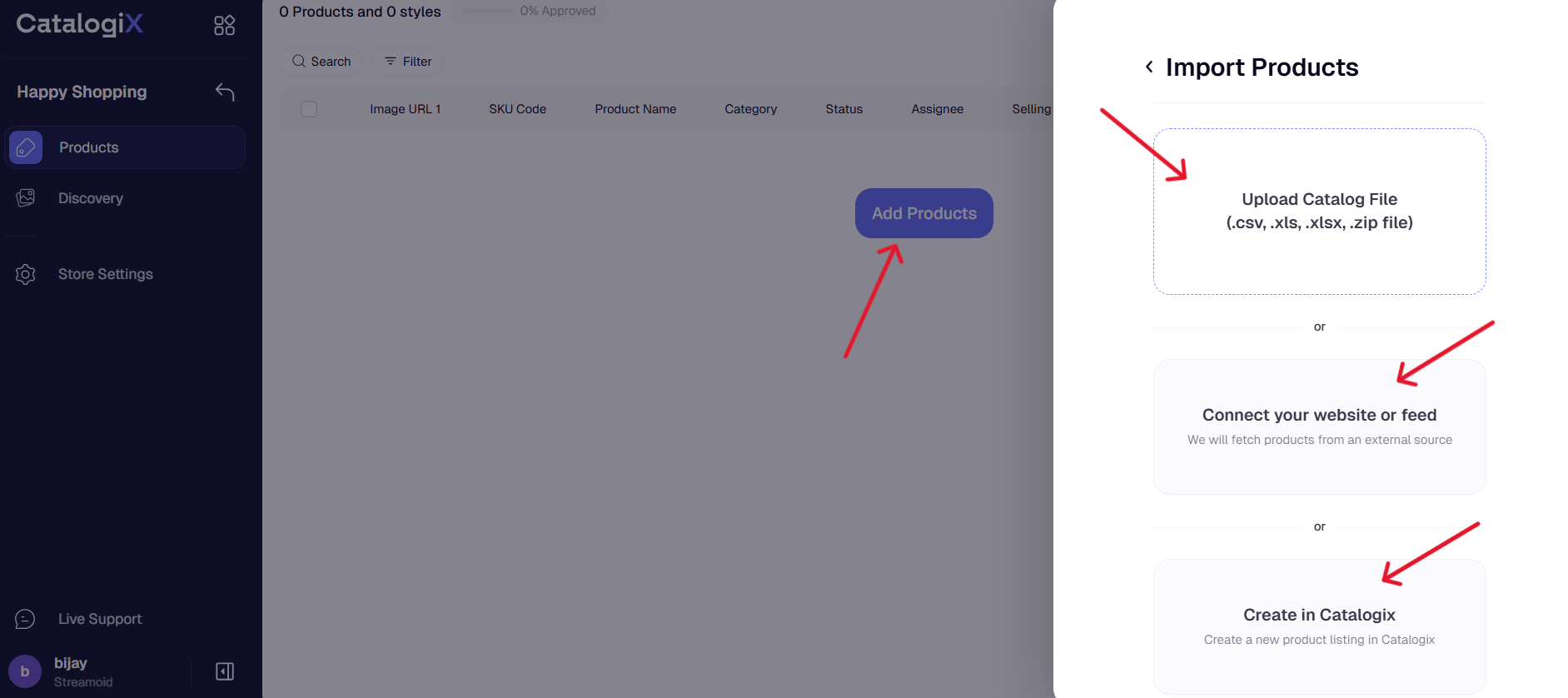
Add Products Workflow - Uploads (Excel/CSV)
1
Upload file
Click + Add products and upload your Excel (.xls/.xlsx) or CSV (.csv) file to begin importing your products.
2
Select channel & mapping method
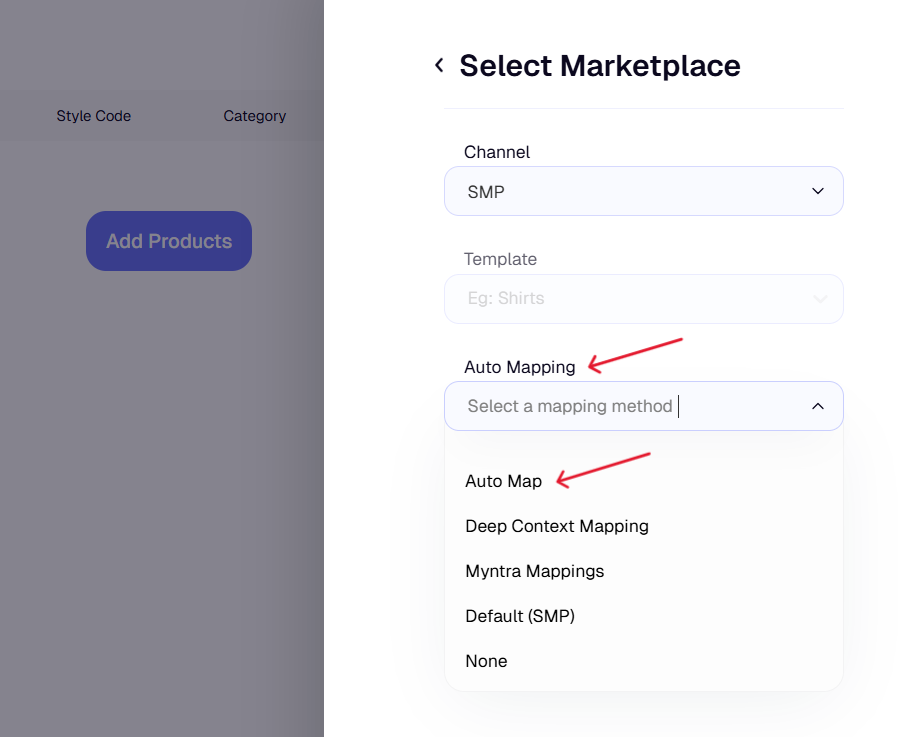
Choose SMP as your channel, select Auto-map as your mapping method, and click Proceed to continue to the next step. 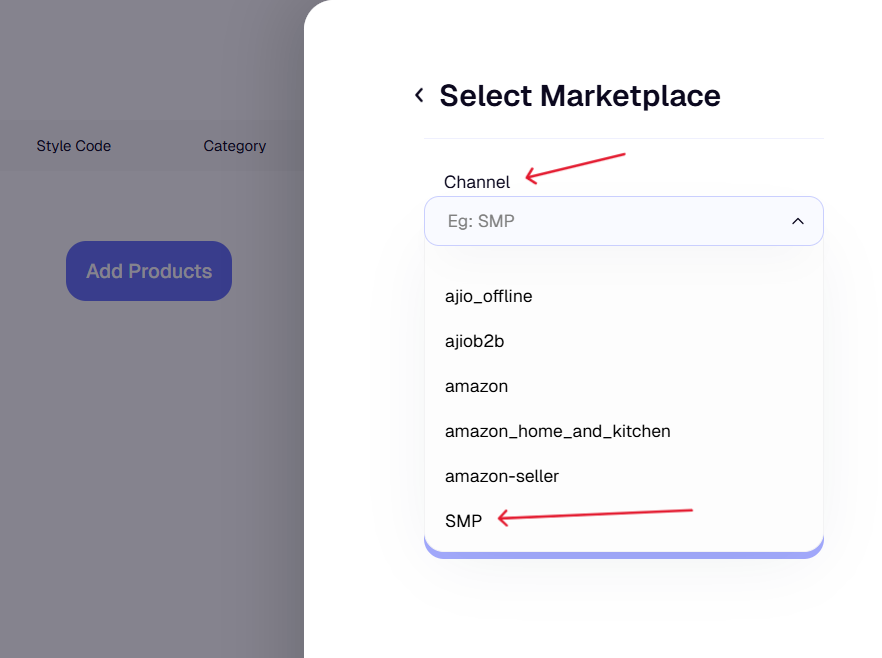
3
Pick the header row (only if needed)
If your file’s headers are not in row 1, select the correct row that contains your headers. If your headers are already in row 1, this step will be automatically skipped. 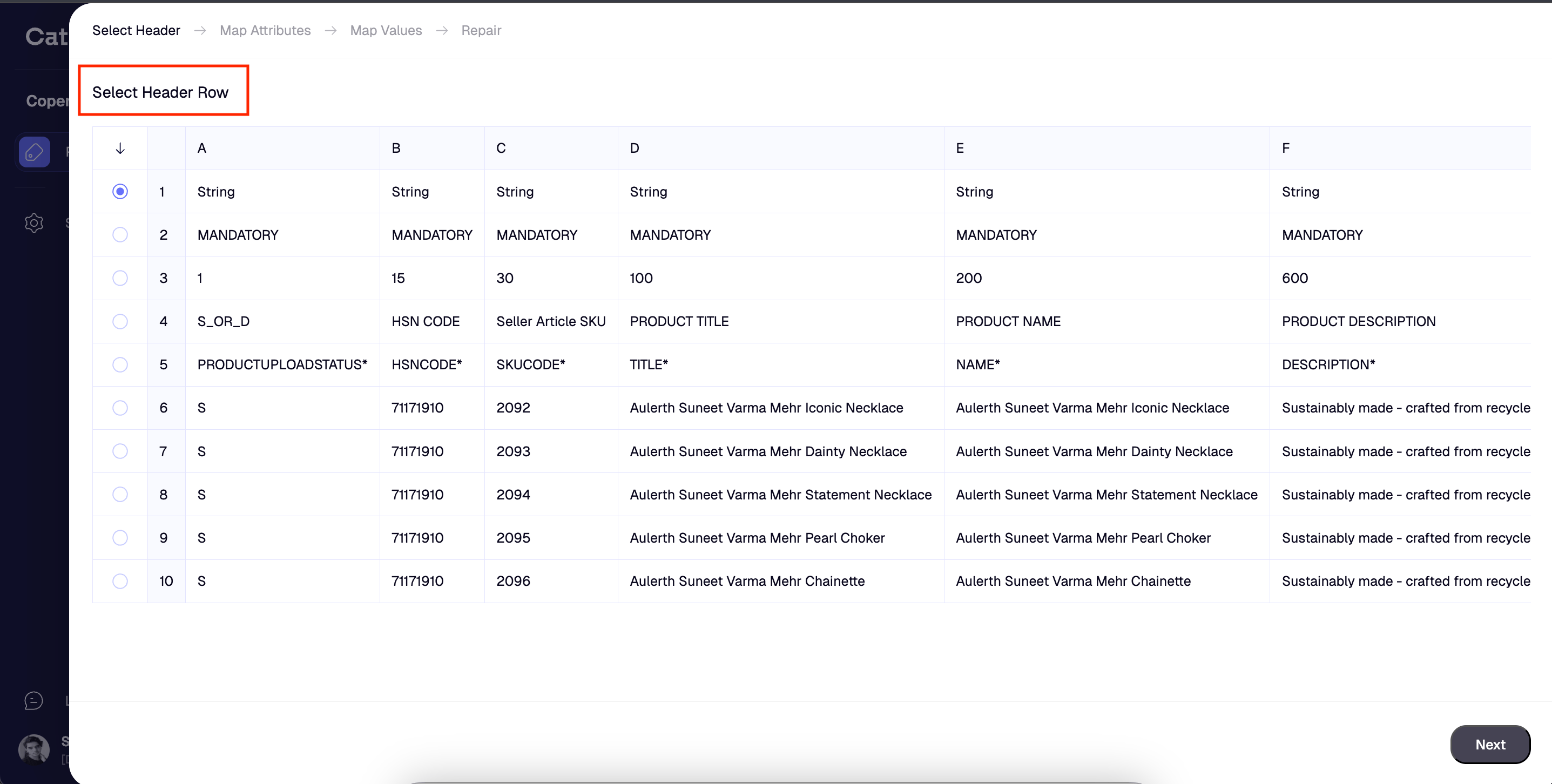
4
Review & confirm attribute mapping
Review all auto-mapped attributes carefully to make sure they match correctly. If everything looks good, you can click Confirm all to accept them at once. 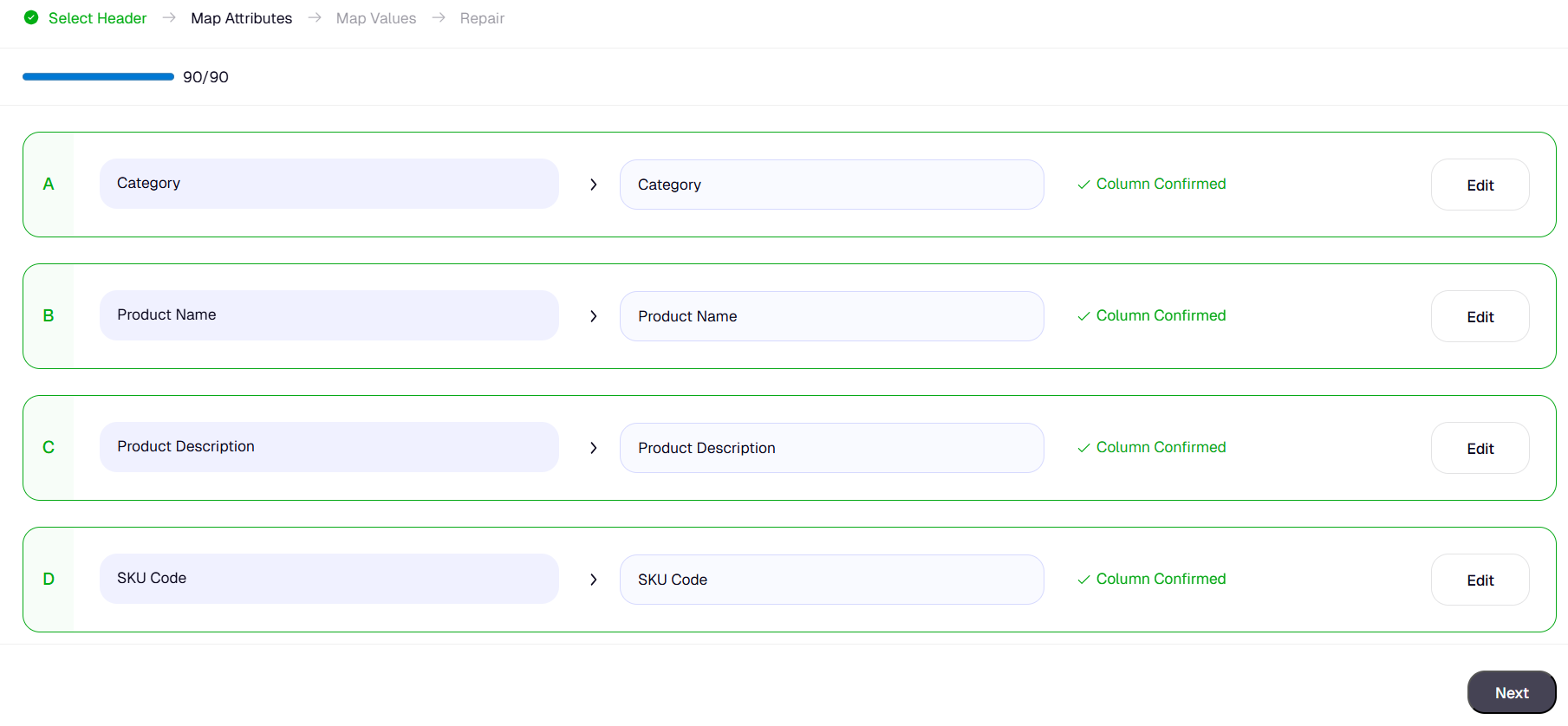
5
Edit or adjust mappings
To make changes, click Edit or select the correct attribute from the dropdown and confirm. To delete a mapping, click the Delete icon. Once you’ve reviewed all mappings, click Next to continue.
6
Map remaining values
Any unmapped values will appear at the top of the list. Review each one and either Map or Skip them as needed. When you’re done, click Next to proceed. 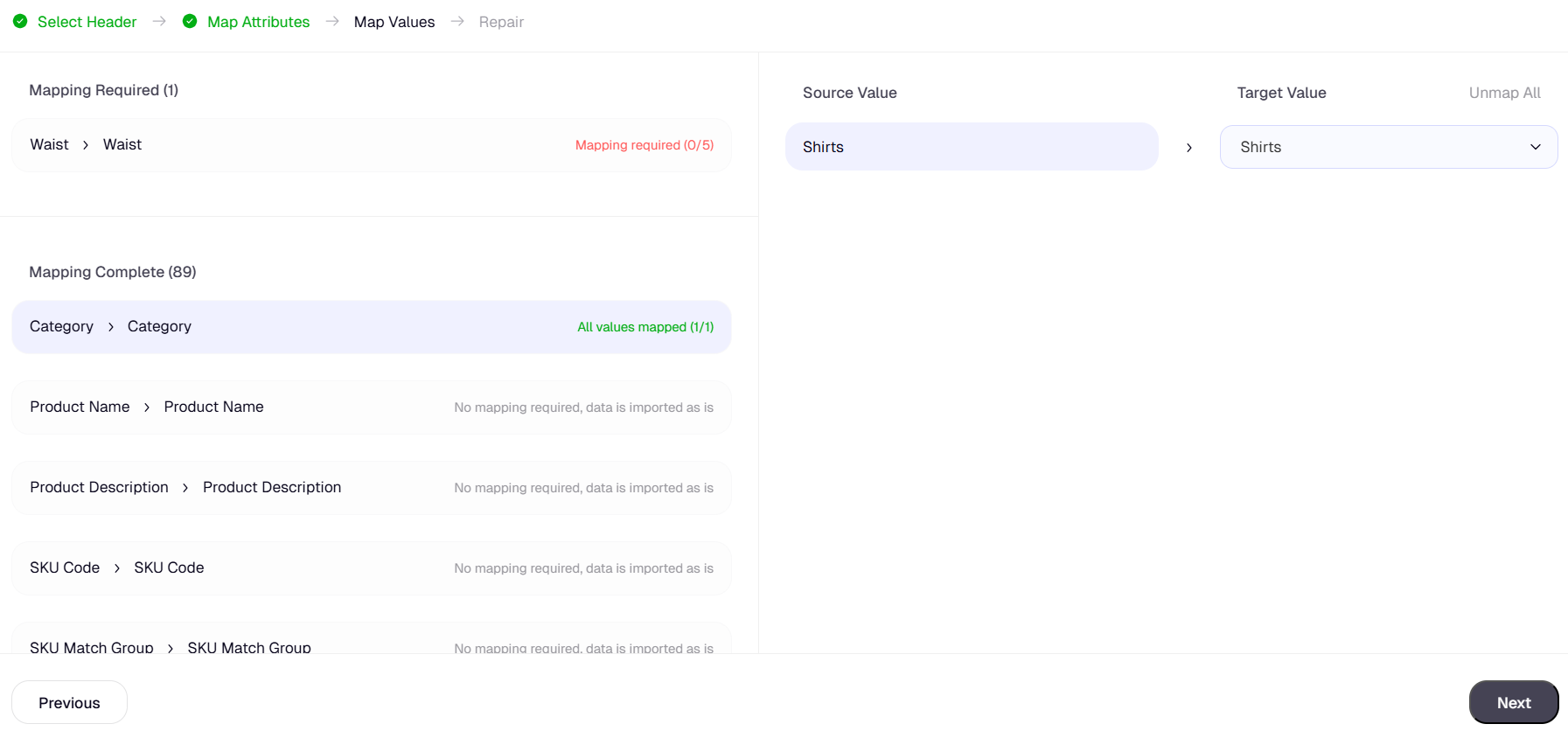
7
Repair & import
On the Repair screen, check for any critical errors such as duplicate SKU codes, as well as warnings that may need attention. Fix any issues if required, then click Import to start uploading your products successfully 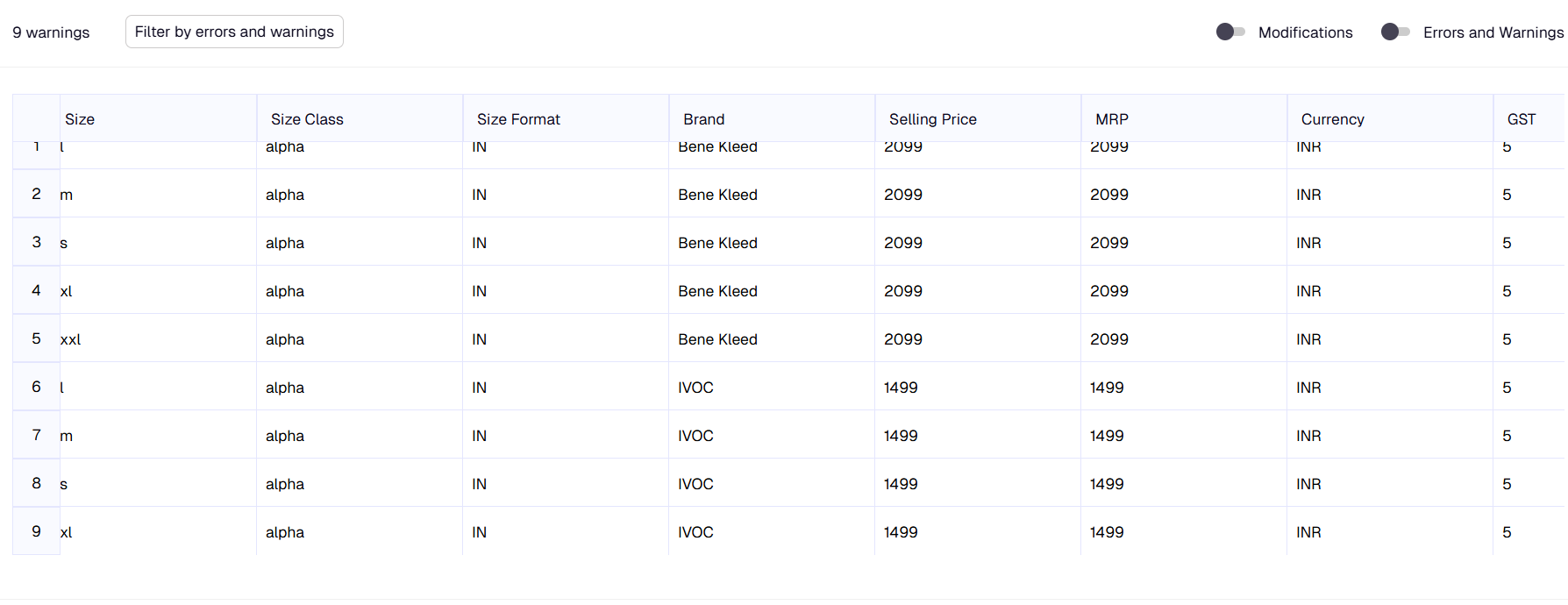
Add Products Workflow - Integrations
This import flow allows you to set up an automated connection between Catalogix and an external system such as a PIM (Product Information Management) or PLM (Product Lifecycle Management) platform. It requires a one-time setup, after which the product data can be imported automatically from the external system into Catalogix.Add Products Workflow - Manual Entry
1
Create a product
Click + Add products and select the ‘Create in Catalogix option’
2
Add core information about the product
Add ** core information ** such as SKU code (mandatory), Department, Category, Activity etc and then click on save.
3
Add product Images
Inside the product display page, switch to the multimedia tab and upload yout product images.