
Overview
Exporting lets you download processed Catalogix data for reporting, sharing, or publishing to marketplaces. Choose the export mode that matches your workflow.Export the Current View
Exporting the Current View returns a CSV that mirrors the columns currently displayed on the PLP.1
Select products
Choose the products you want to export and click Export.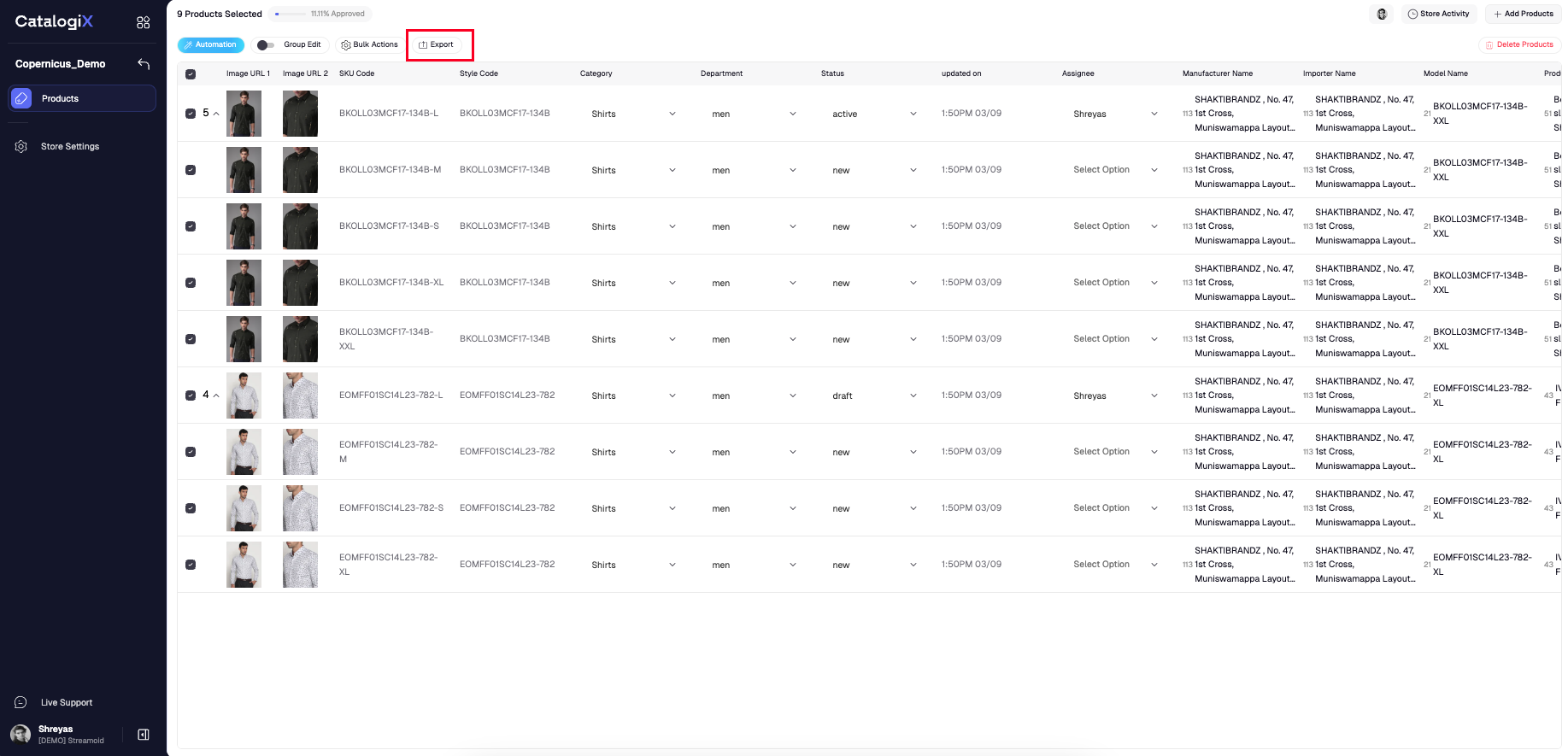
2
Set destination
Pick Current view as the destination, enable Export as CSV, and click Export.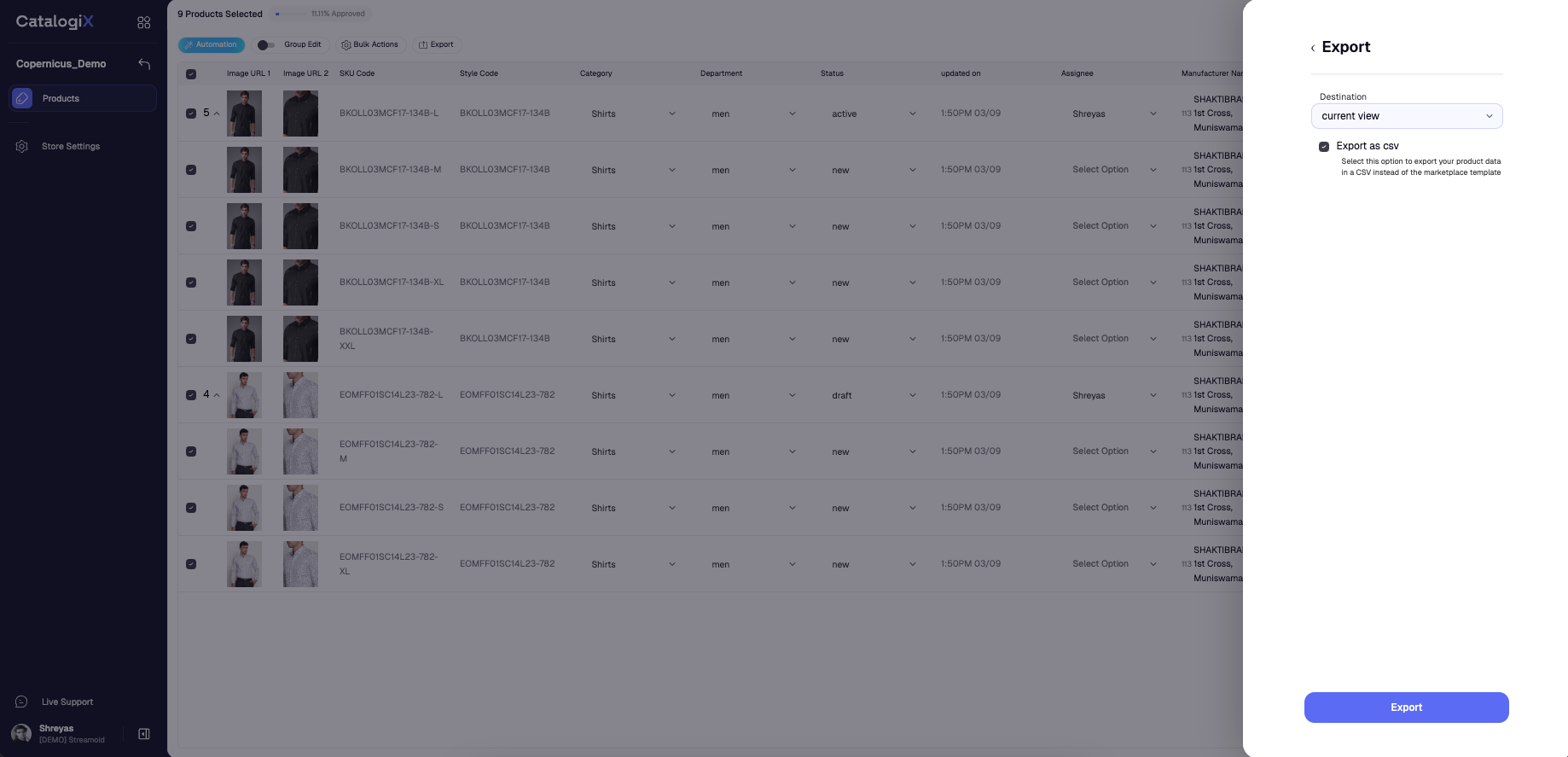
3
Download the file
Catalogix emails a download link once the file is ready.
Export Marketplace Templates
To receive data formatted for a specific marketplace, set the destination to the channel template (for example, Amazon) and click Export.1
Open export
Select the products and launch the export modal.
2
Choose marketplace template
Pick the target marketplace (for example, Amazon) as the destination and click Export.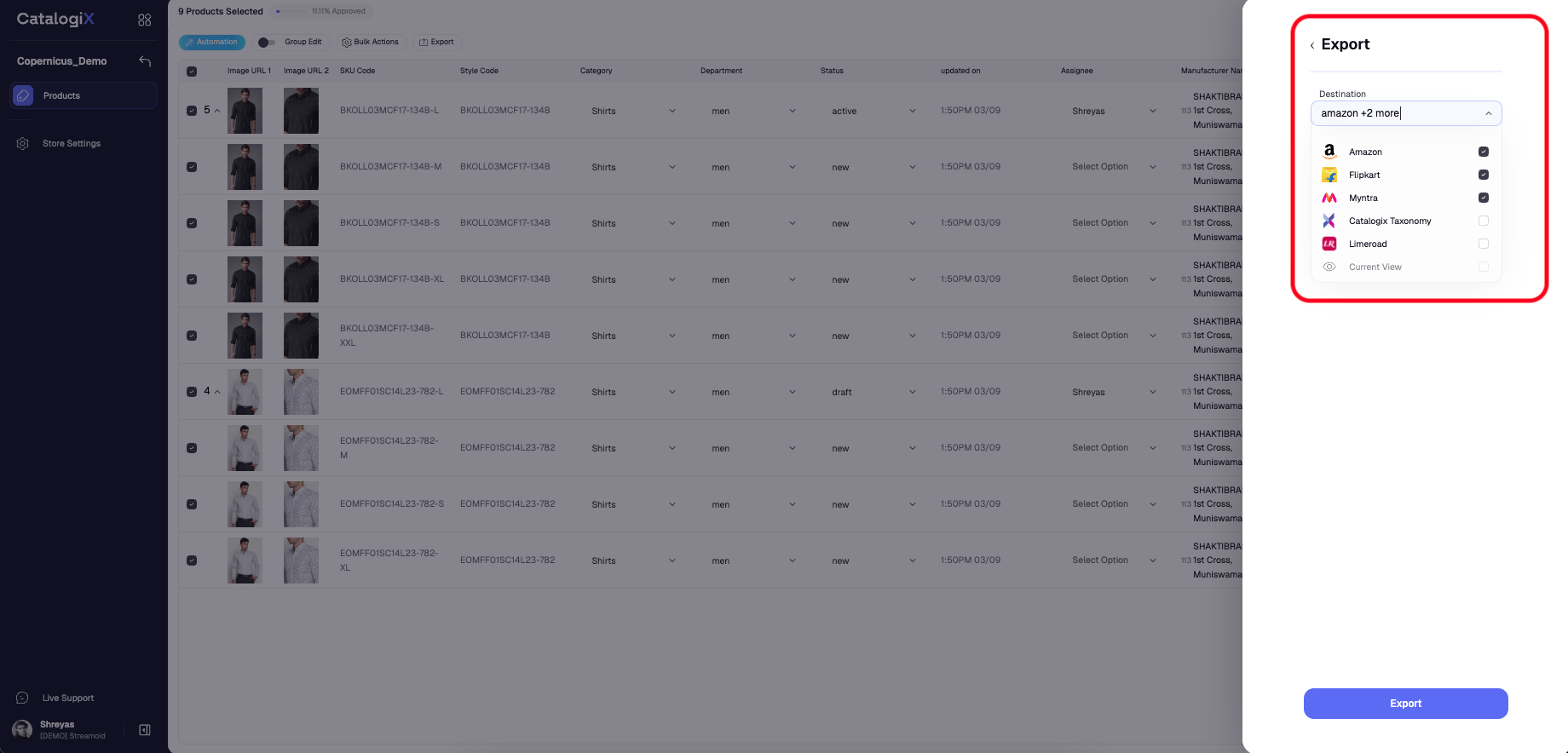
3
Retrieve the file
Catalogix sends an email with the template-formatted export once processing completes.
Export Products in Catalogix Taxonomy
Download all product imagery and data by choosing Catalogix taxonomy as the destination. Selecting Include all sources, will include all data sources such as feed value, user value and automation values.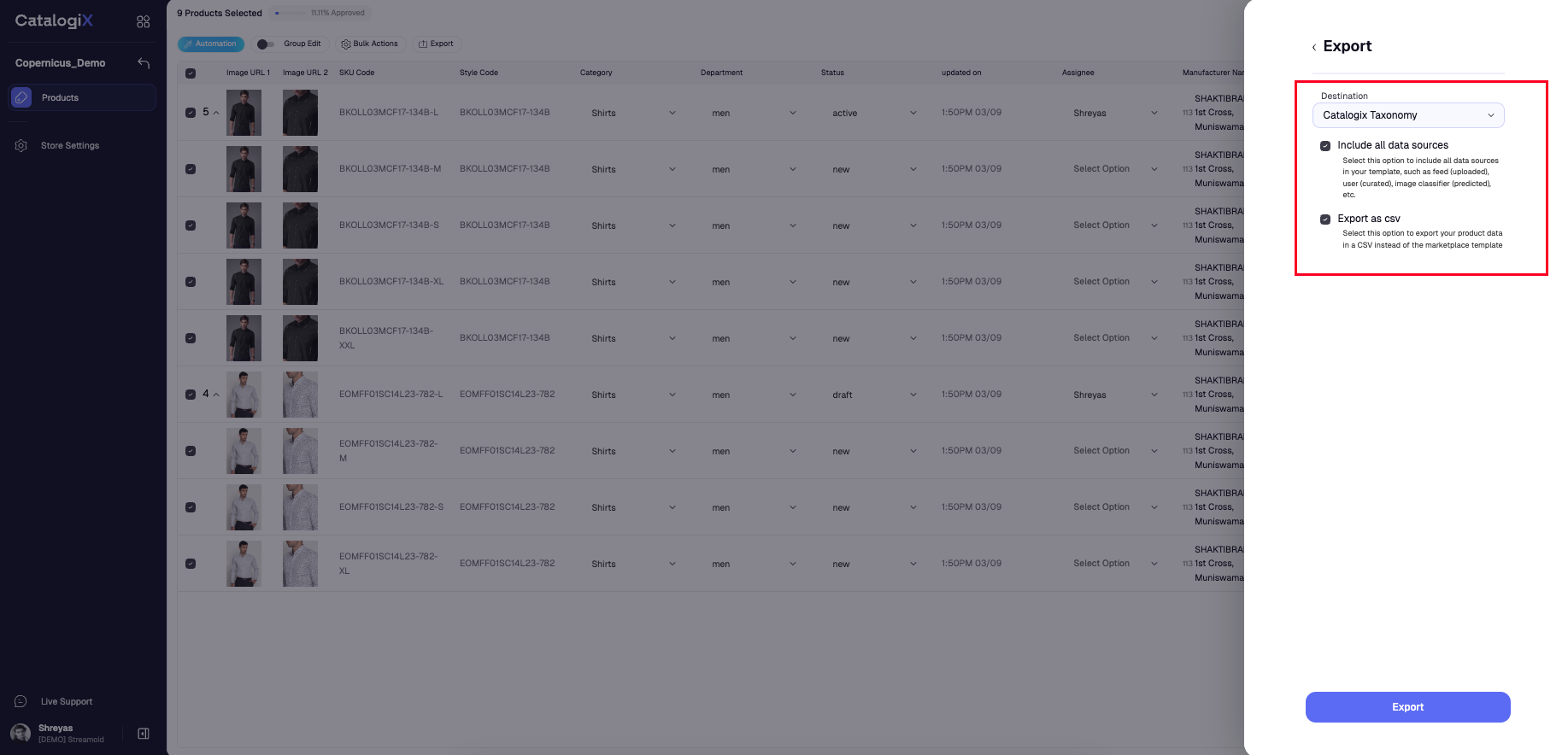 Catalogix sends a link to a ZIP archive containing every image from the selected products and CSV of all the products segrated by categories (each category will be one page in the csv. )