> ## Documentation Index
> Fetch the complete documentation index at: https://docs.streamoid.com/llms.txt
> Use this file to discover all available pages before exploring further.
# Upload and Export
> Upload assets, customize edits, and export your finished visuals.
Once you’re inside Photogenix, follow these core steps to generate and download finished renders.
Follow on-screen instructions to upload your product or model images for your chosen use case.
Choose your desired model, background, and styling options from the Photogenix library or create your own prompts.
Click **Generate** to process the image using AI. Photogenix will render your visuals within seconds.
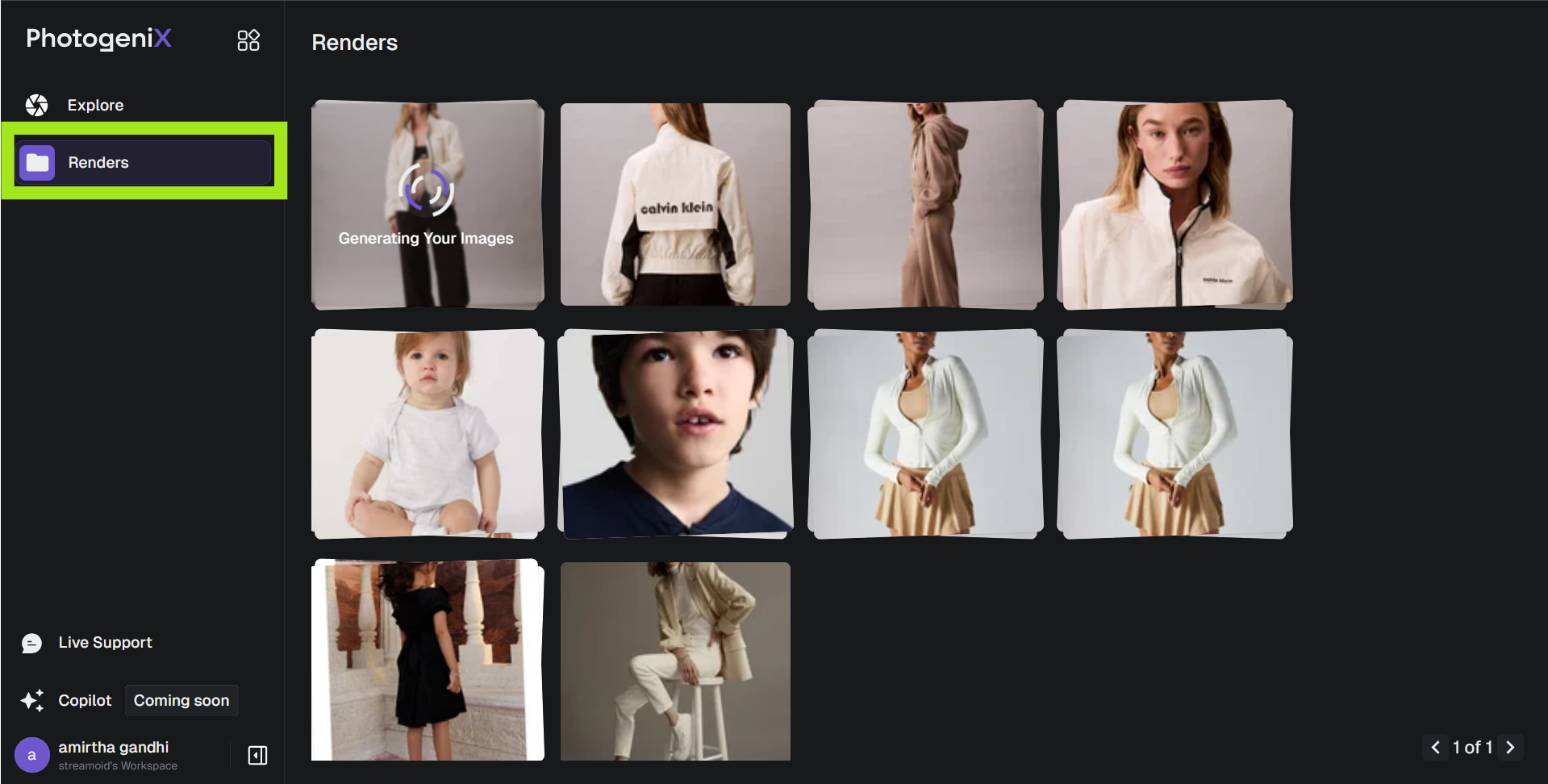
Go to the **Renders** tab to view and download your processed images. Export in marketplace-specific dimensions.
Use **Regenerate** if you want to tweak backgrounds or models without re-uploading the source image.