> ## Documentation Index
> Fetch the complete documentation index at: https://docs.streamoid.com/llms.txt
> Use this file to discover all available pages before exploring further.
# AI Retouch Tool
> Regenerate scenes, perform targeted retouching, and keep campaigns consistent.
Photogenix gives you two powerful controls — **Regenerate** and **Retouch** — so you can iterate on AI outputs without restarting the entire workflow.
***
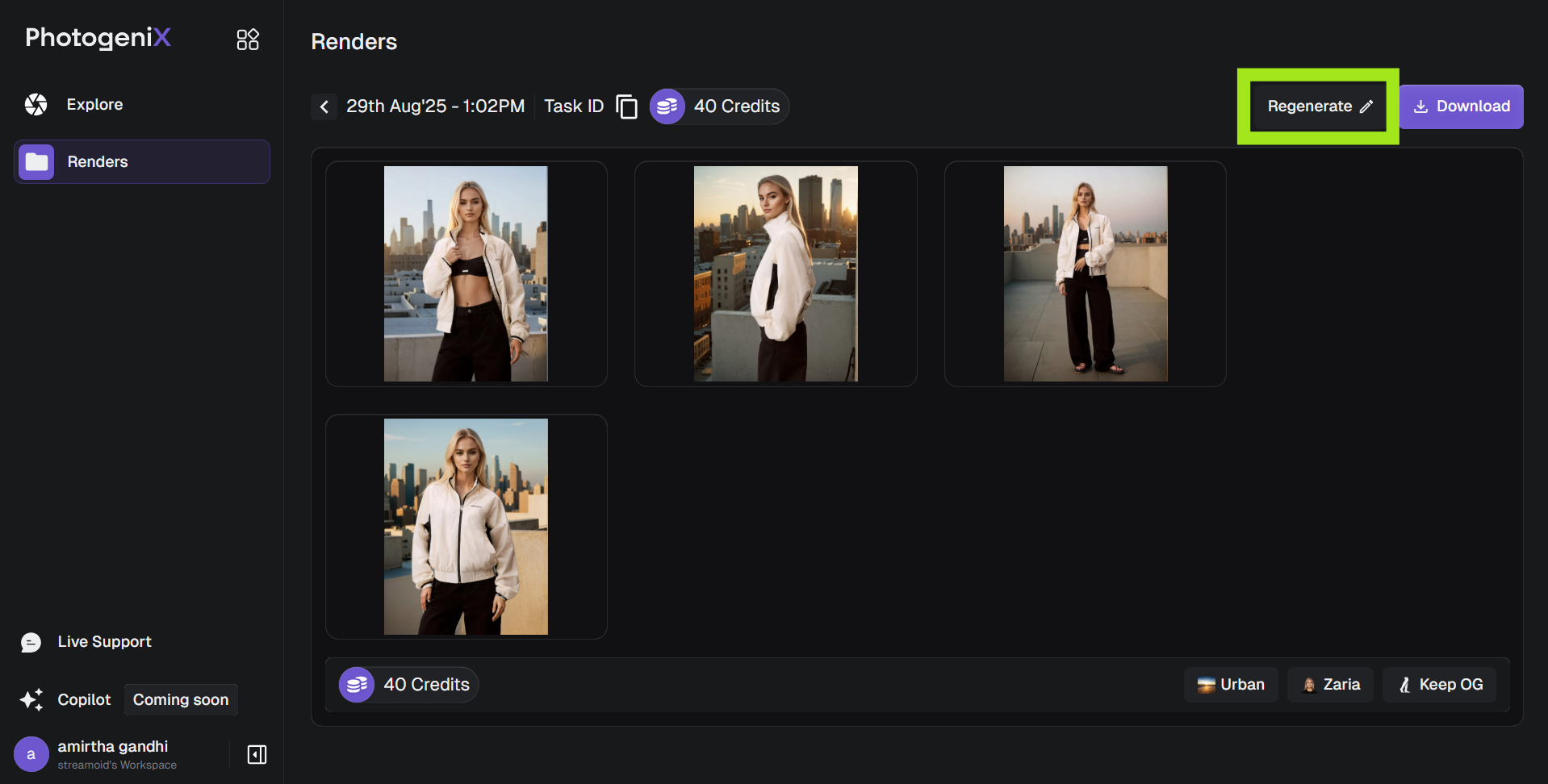
To change the model or background in generated images:
1. Click **Regenerate** on your image.
2. Update your selections from the model or background library.
3. Click **Generate** again to create a new version.
Each regeneration counts as a new image and will deduct credits from your plan.
***
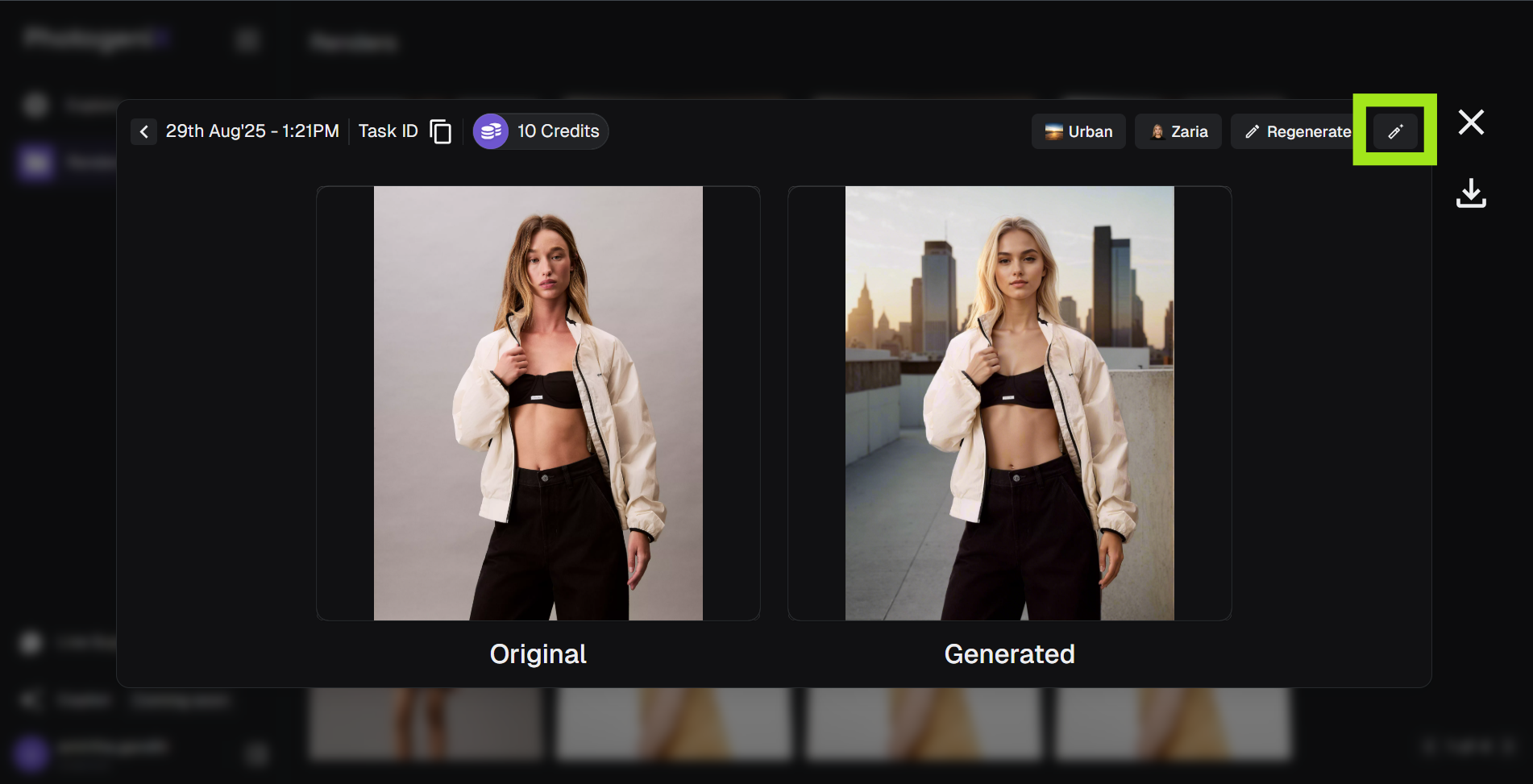
Use **Retouch** to fix small imperfections or make creative tweaks.
Select **Retouch** from the options menu for the render you want to update.
Write what you’d like to change (e.g., “Add a black leather handbag” or “Fix lighting on the left arm”).
For precise edits, click **Manual** to mask the specific area and generate updates.
Once the retouch is complete, save your final output so you can compare versions later.