> ## Documentation Index
> Fetch the complete documentation index at: https://docs.streamoid.com/llms.txt
> Use this file to discover all available pages before exploring further.
# Product Listing Page
> Explore the Catalogix Product Listing Page (PLP) to manage products, views, filters, and bulk actions.
## Overview
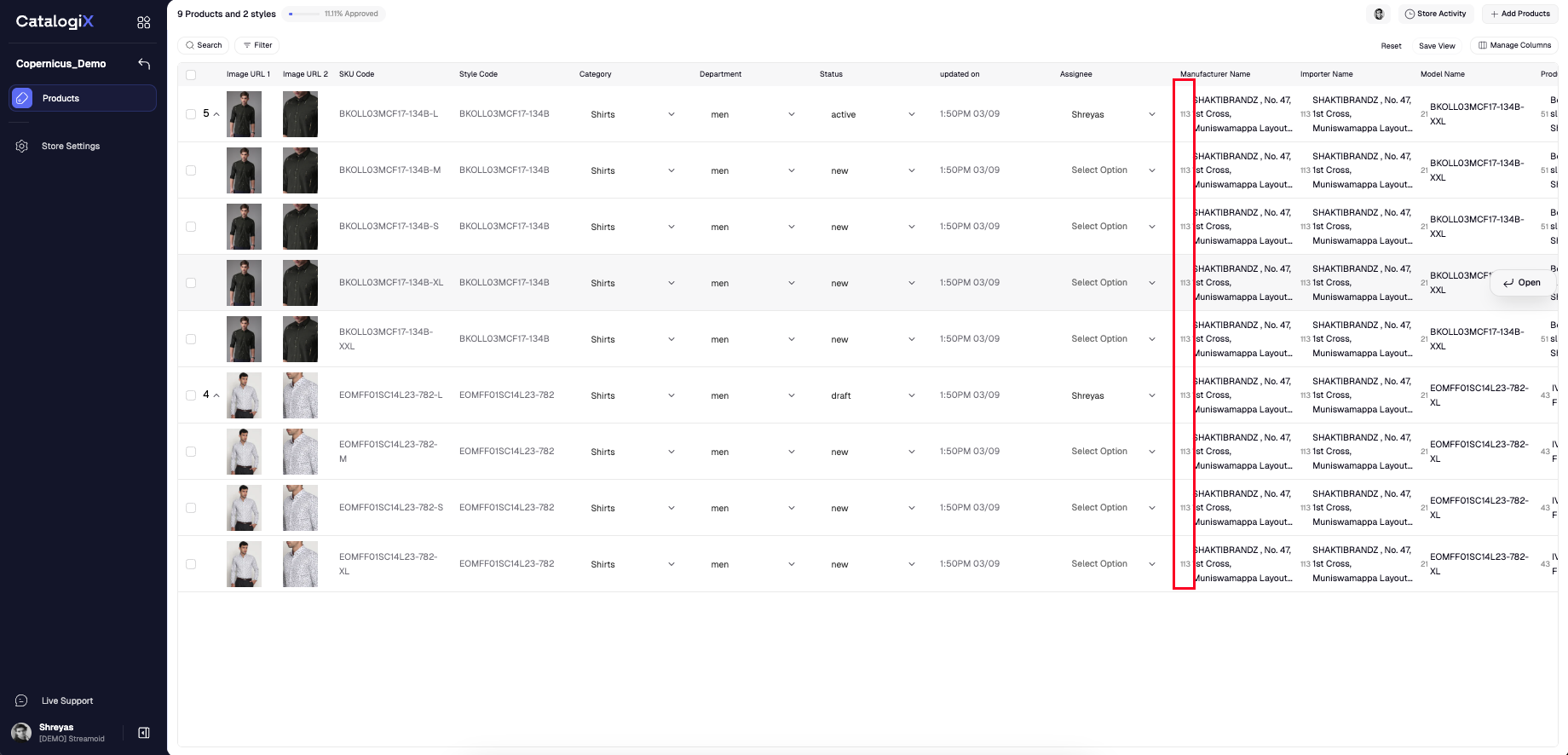
The Product Listing Page (PLP) shows a consolidated list of products in a Catalogix store. Switch views to focus on the information you need, edit product details, run automations, and monitor store activity from a single screen.
## Switch to pre-loaded views
Once you have uploaded products to your store you can now start checking for data quality. To do so, you can switch your views based on category.
A view is a specifc collection of columns/attributes that are actively visible to you on the PLP.
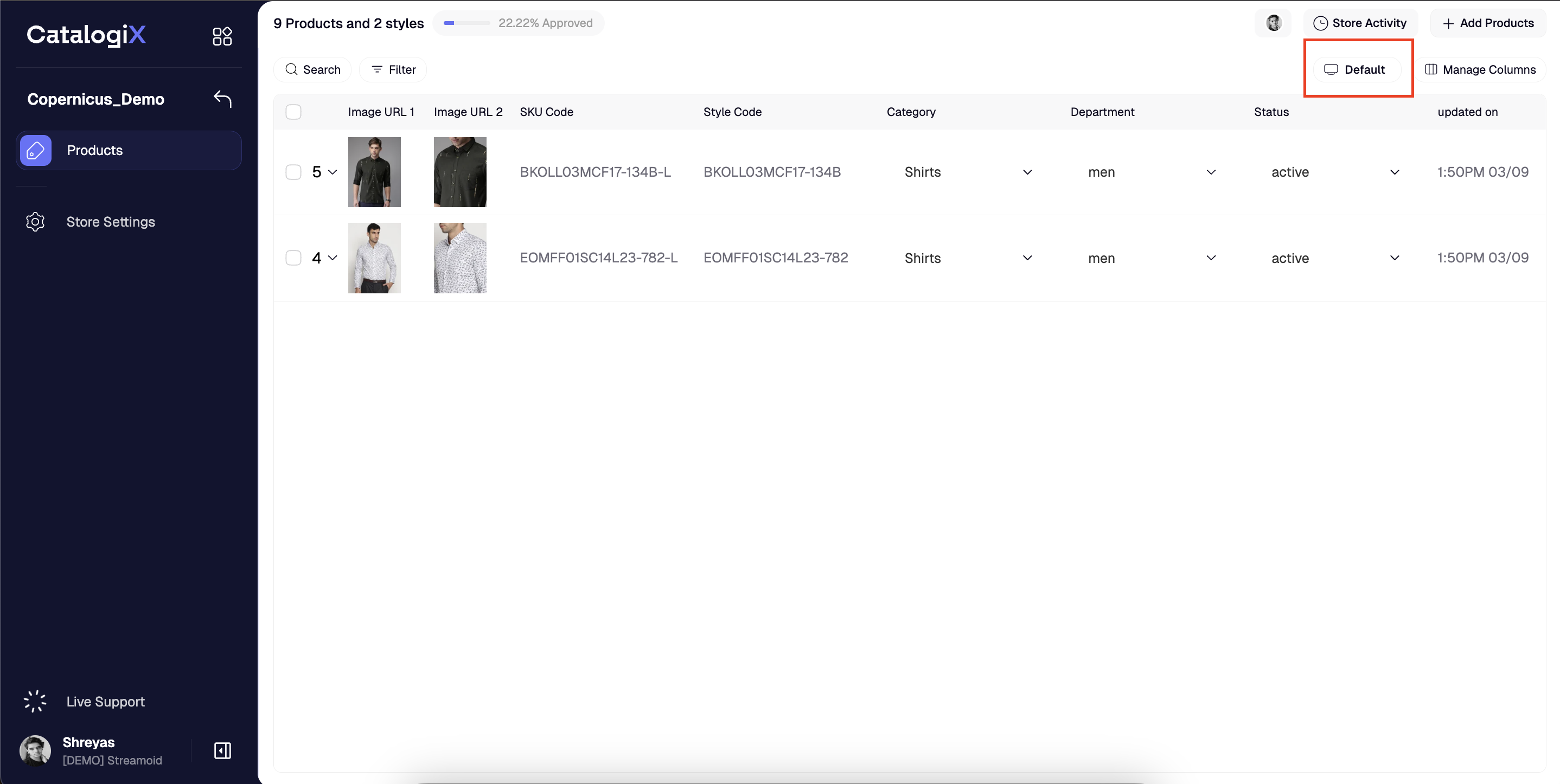
Choose from the list of available views. You can search for a category as well and click on the one you want. 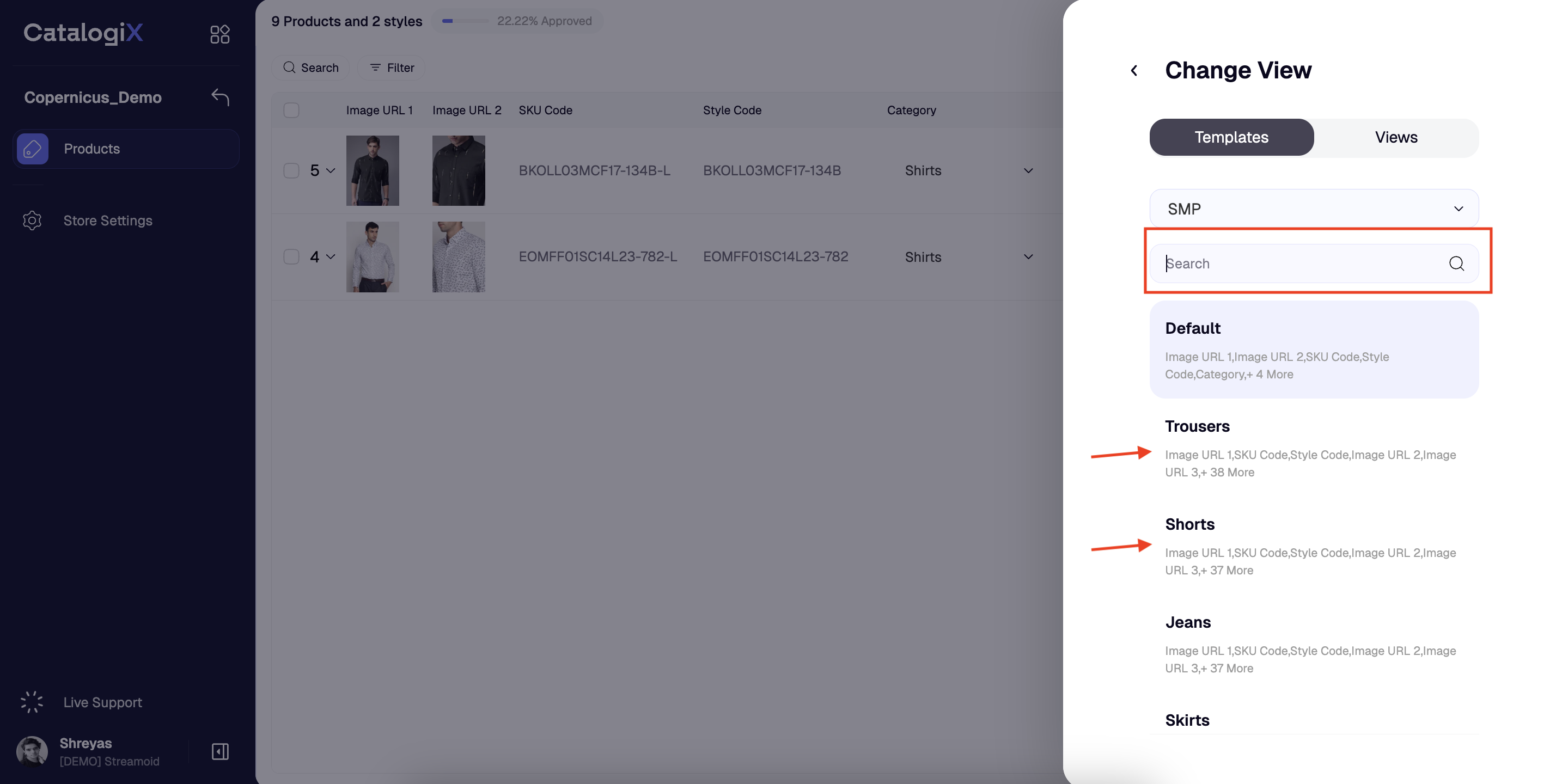
Once you have selected your view, you can now see that your PLP is changed with a category filter and relevant attributes. This helps you focus on reviewing the data for that category. 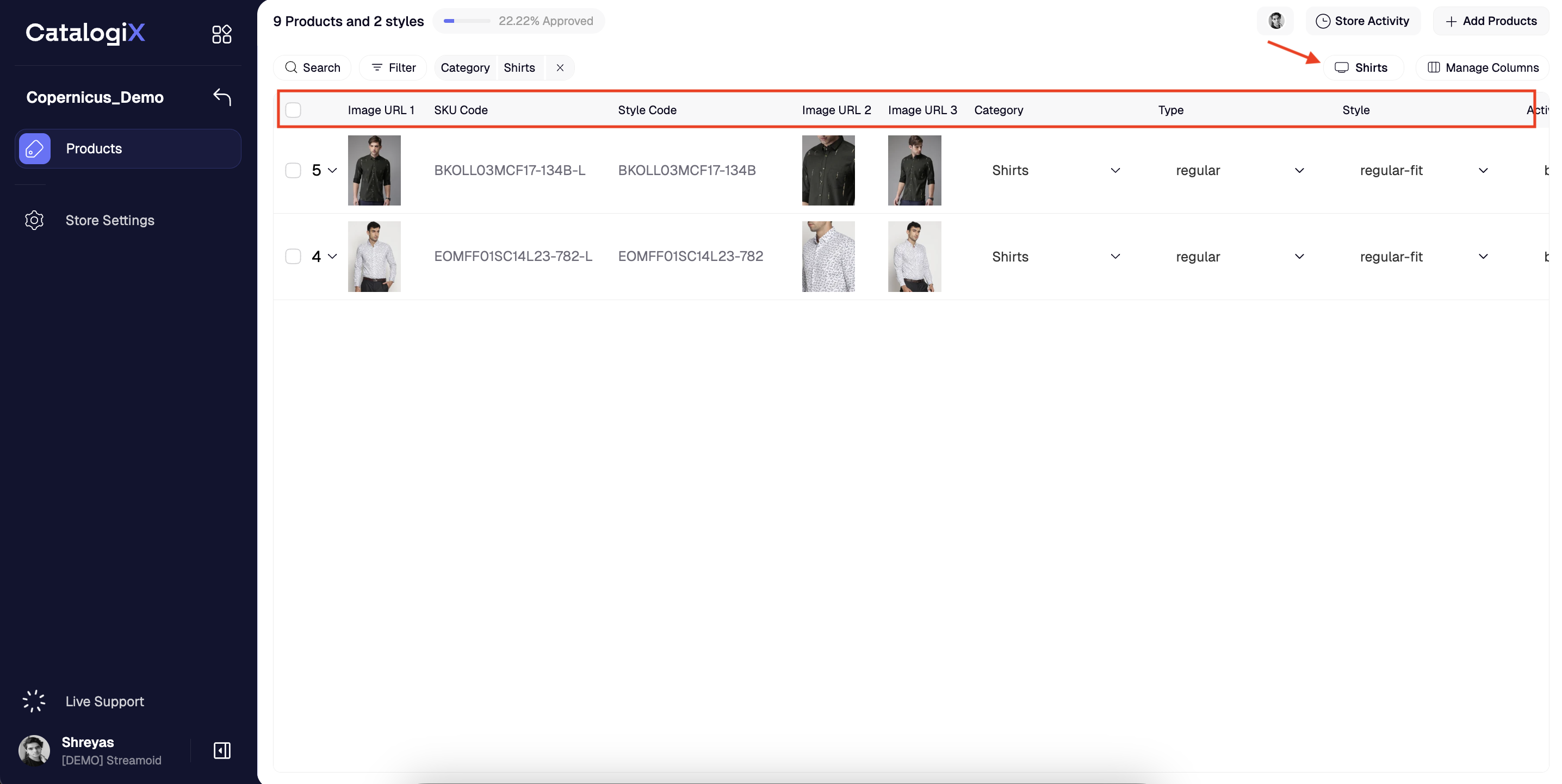
## Create your own views
You can create your own views i.e collection of columns/attributes instead of using pre-loaded views.
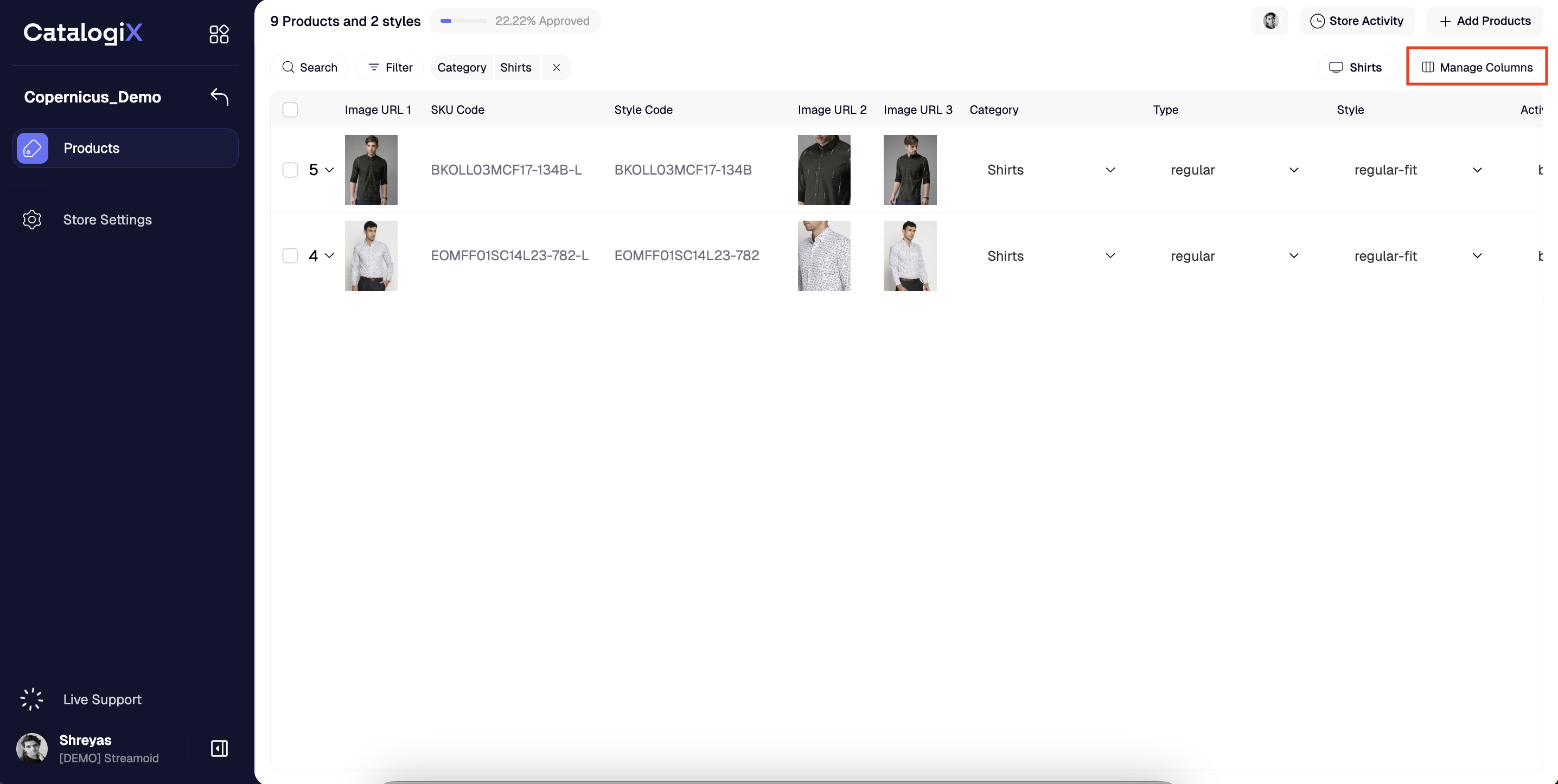
All the visbile columns are on the right & the other hidden columns are on the left. Select attributes from either side and use the hide/make visbile button to create your view. 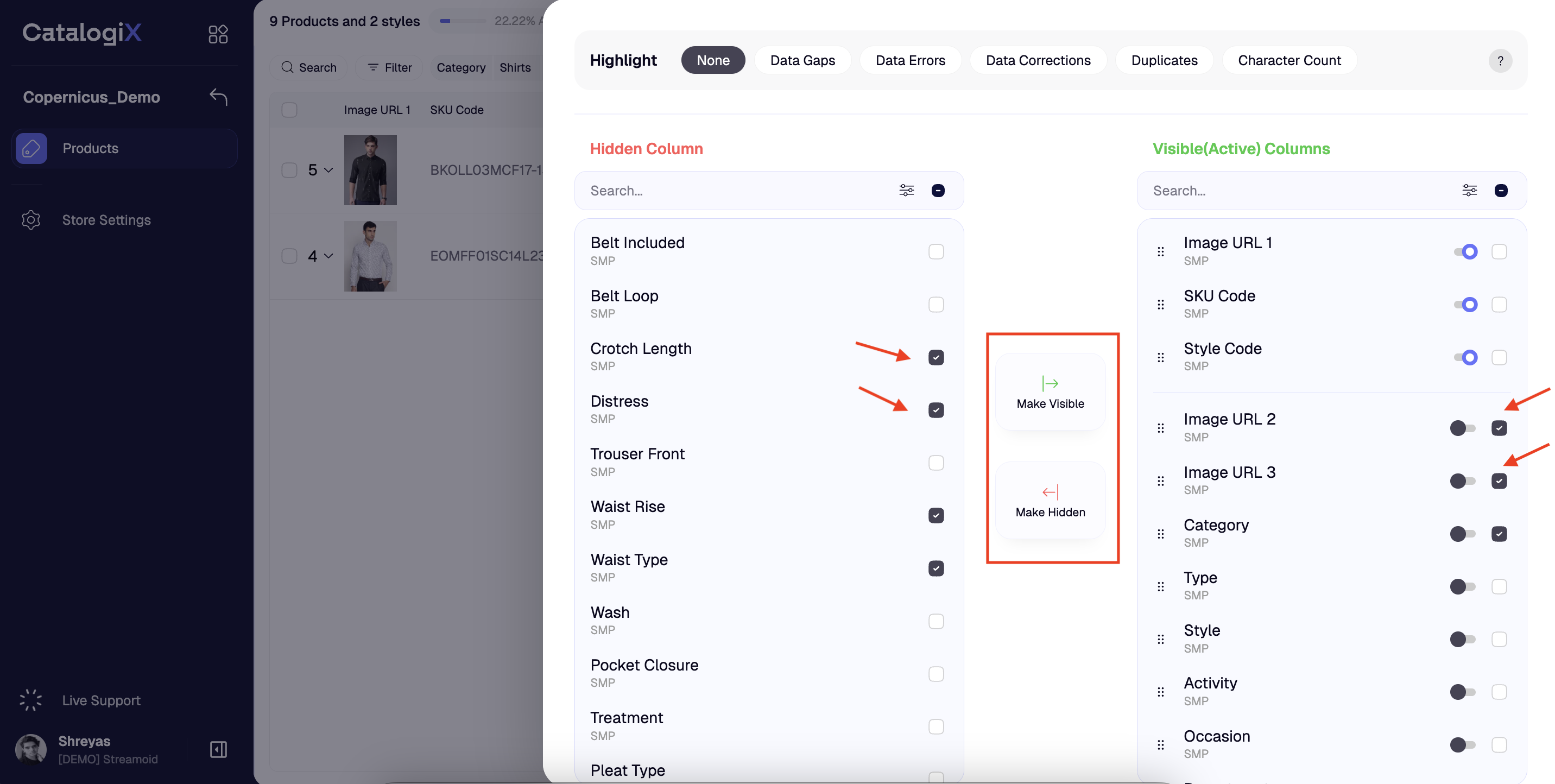
You can set your required column order by clicking on the hold icon next to each attribute and dragging it up or down 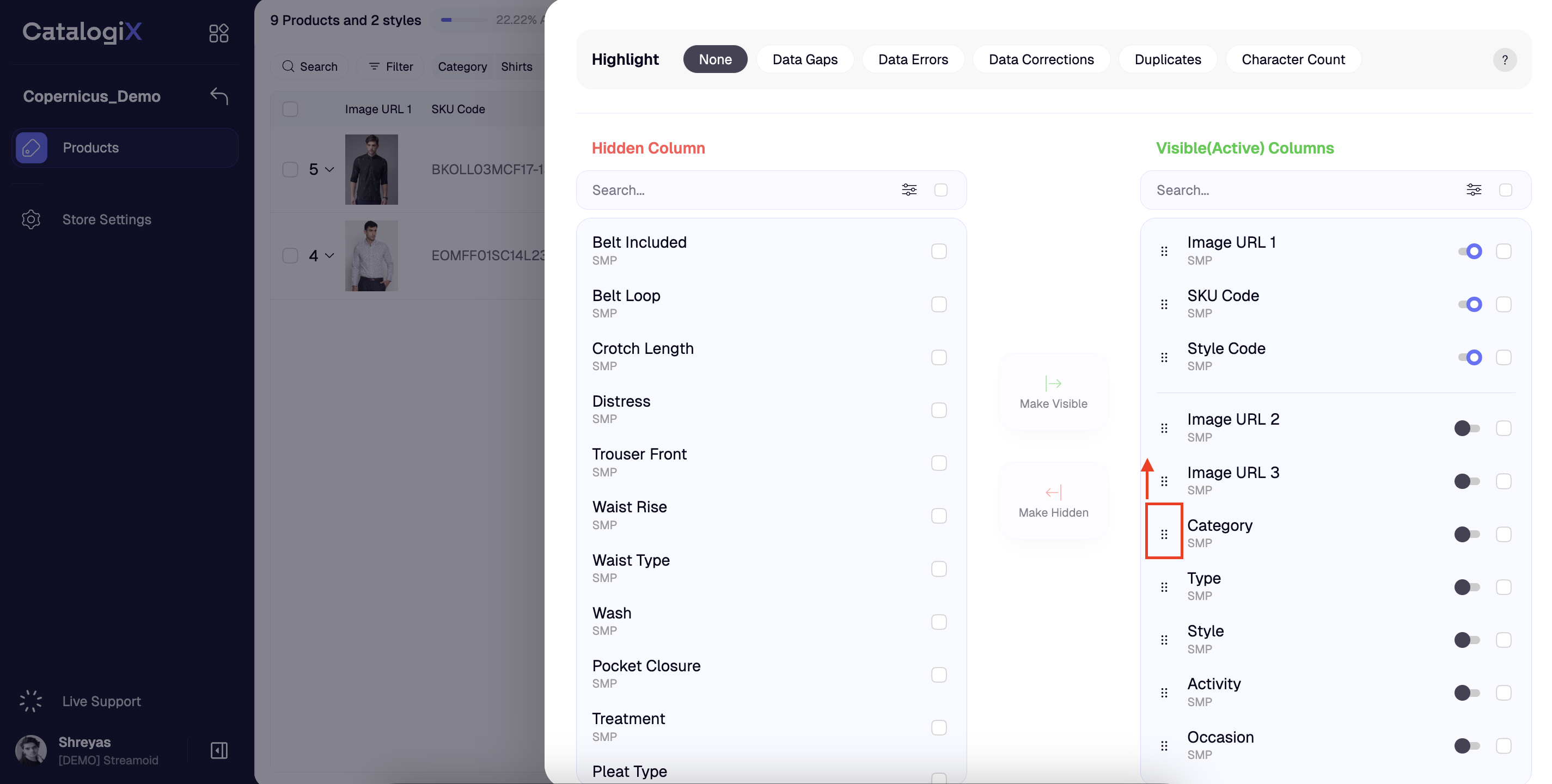
You can lock the column i.e freeze it by turning on the toggle. Please note that at any given time only 3 columns can be locked. 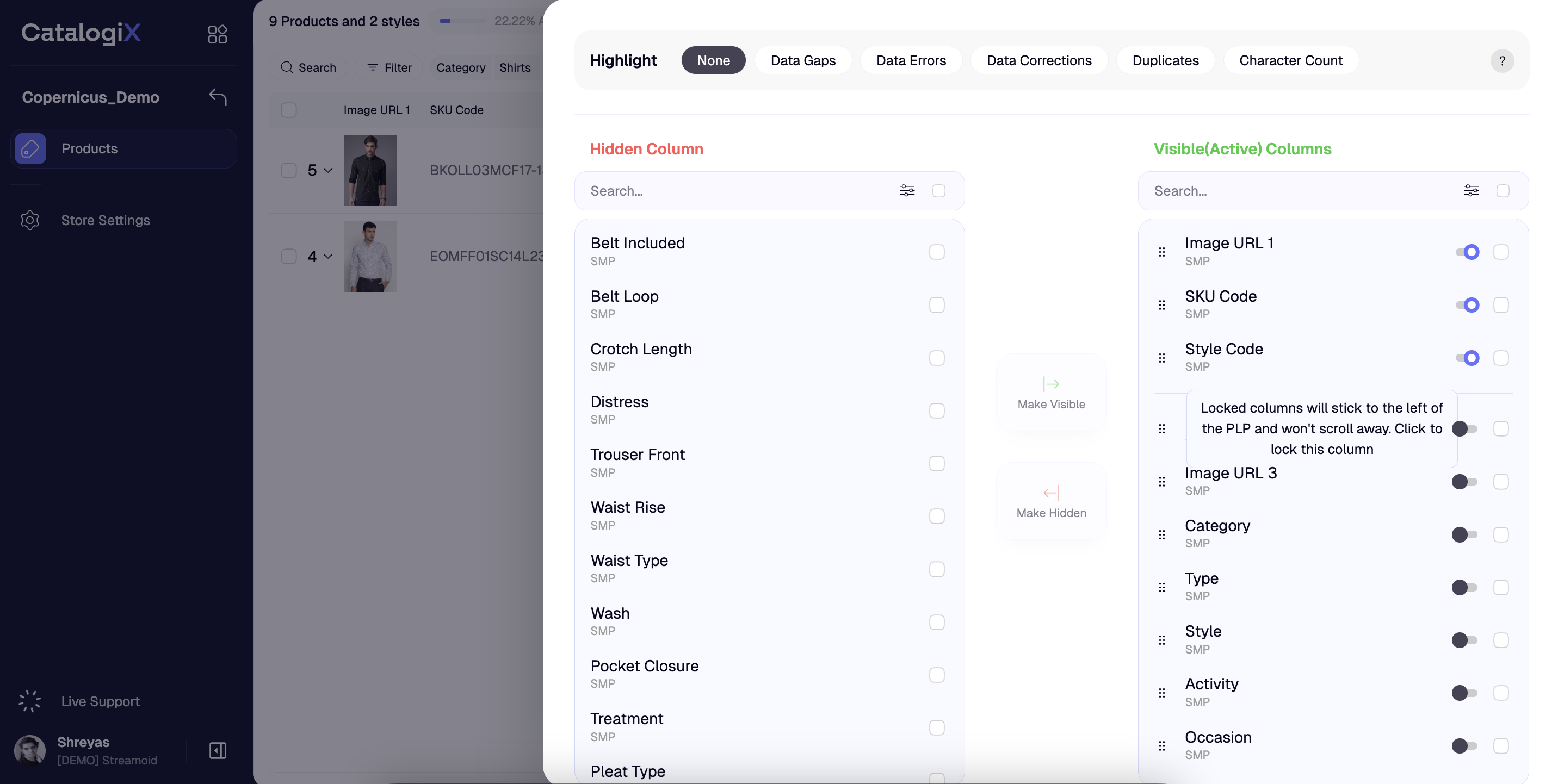
Click outside the modal and then save the view. You can give the view any name you prefer. 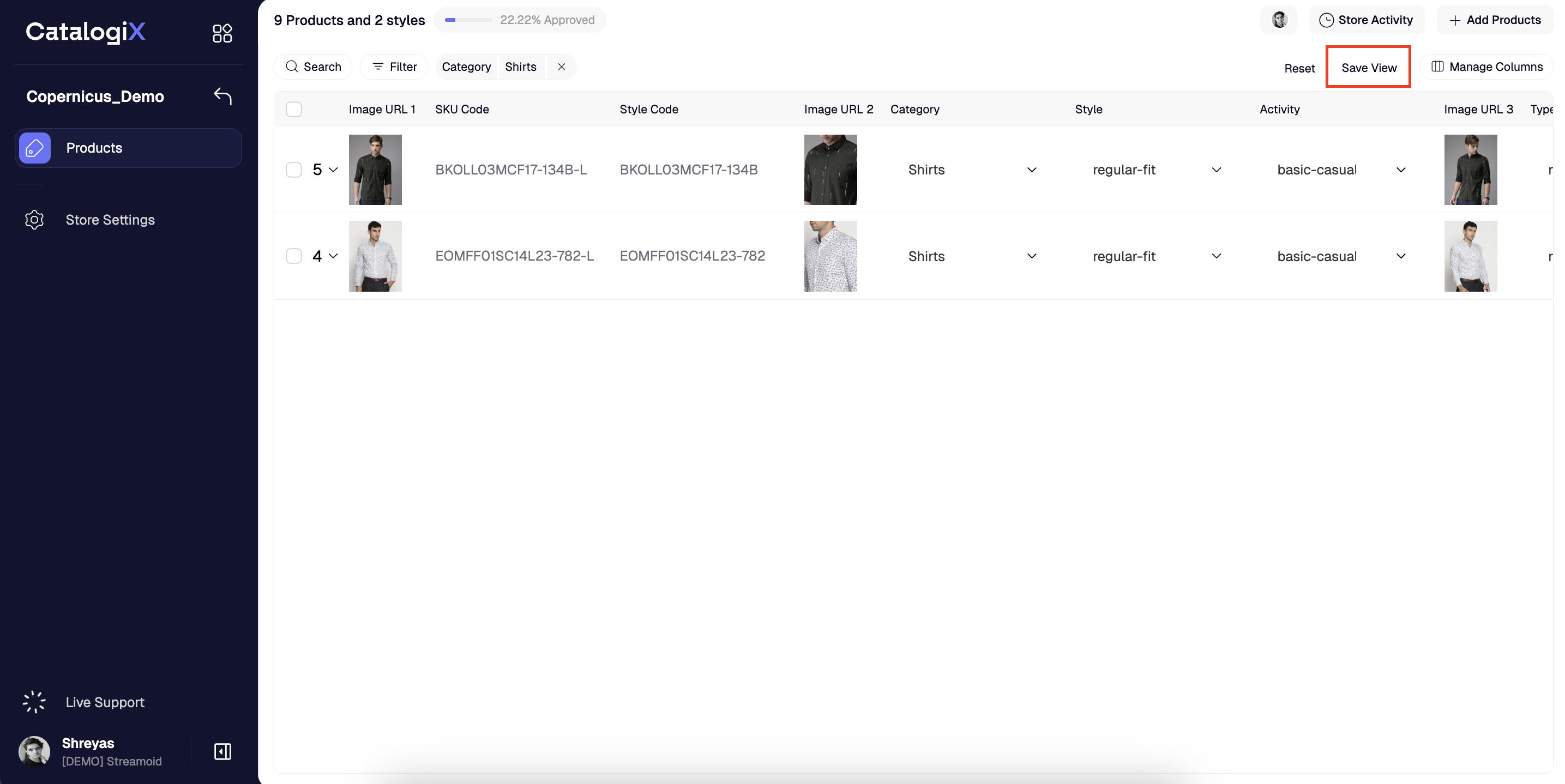 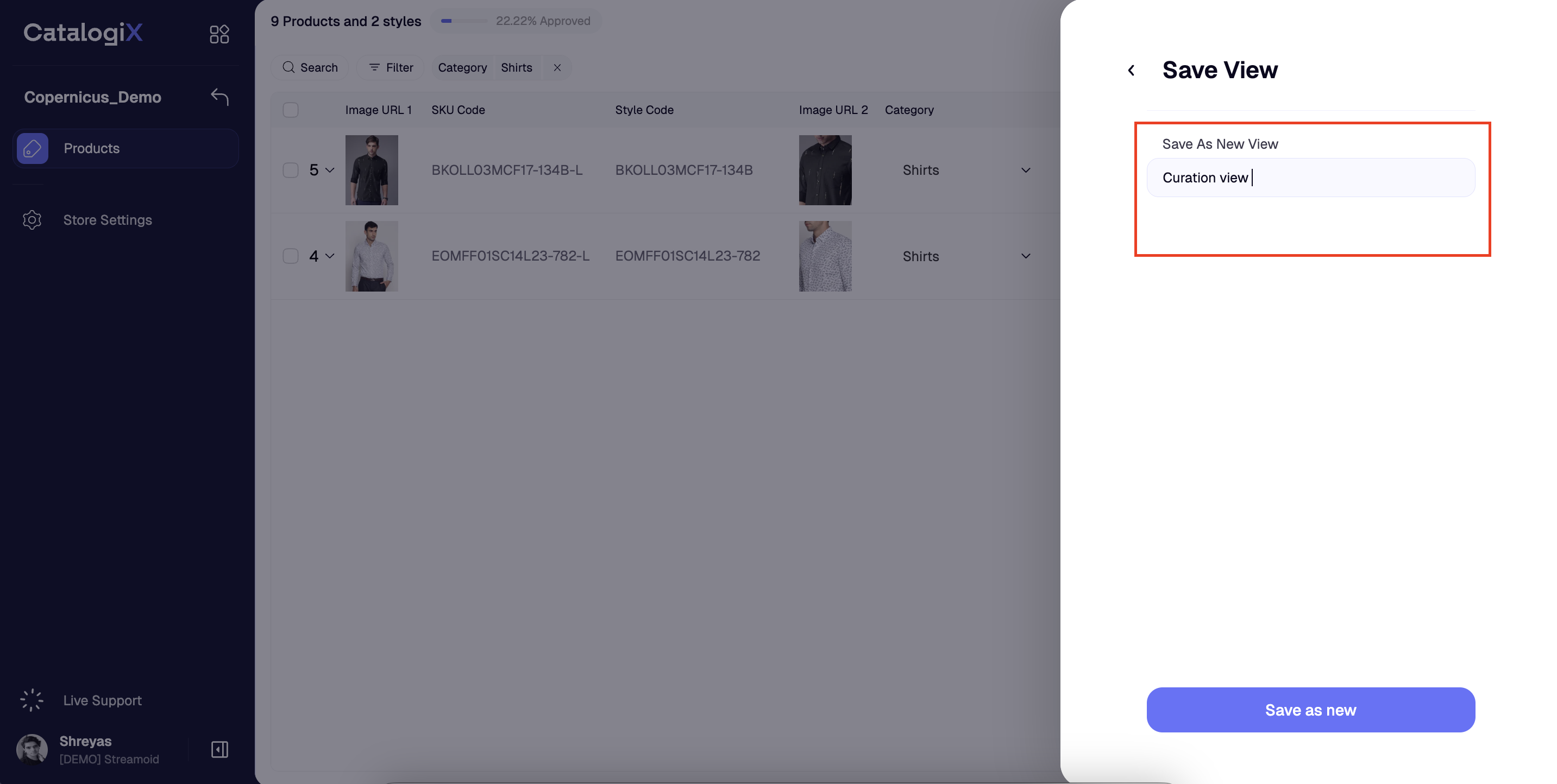
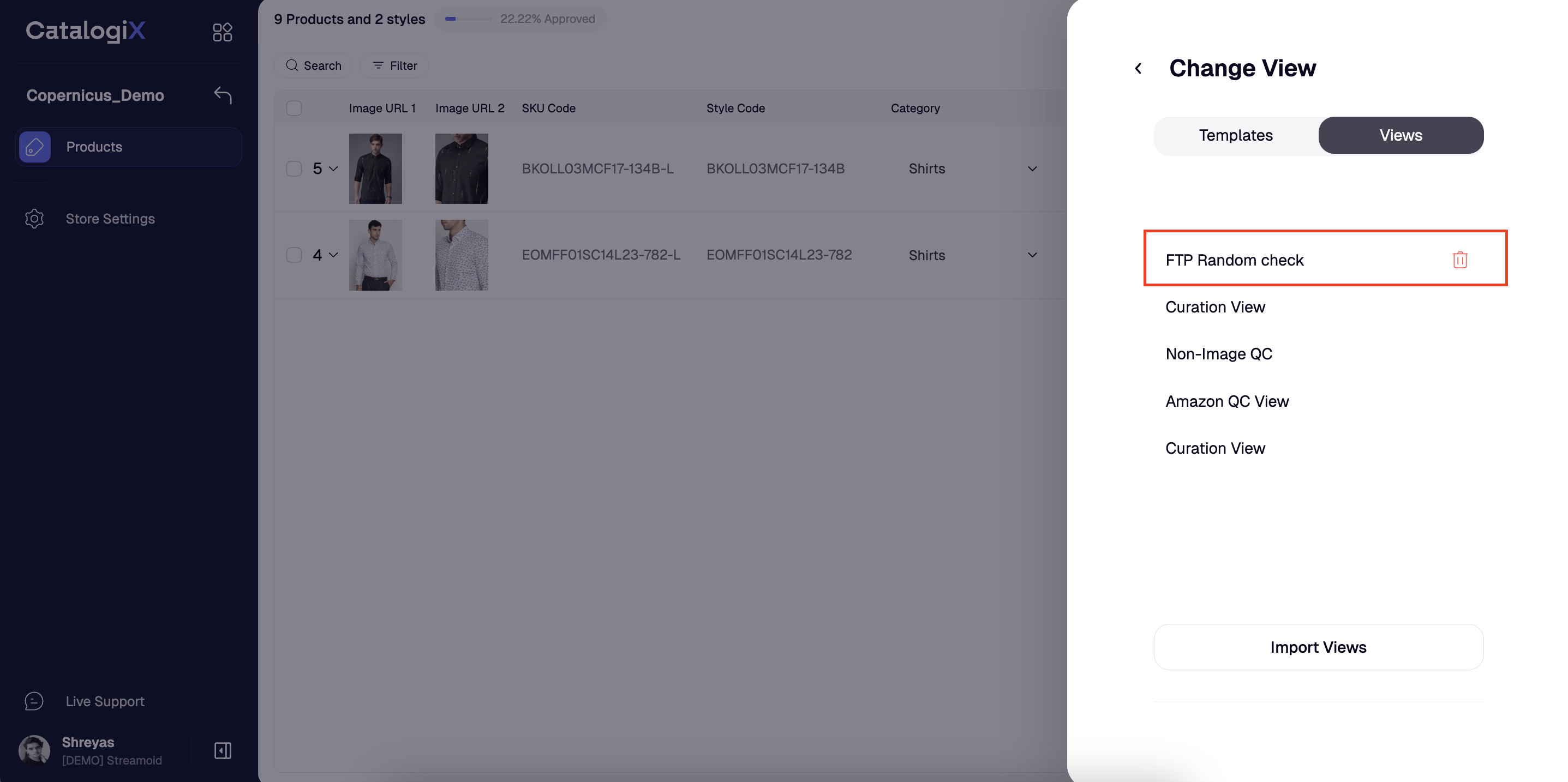
All your created views will be present under the 'views' tab in the change veiws section.
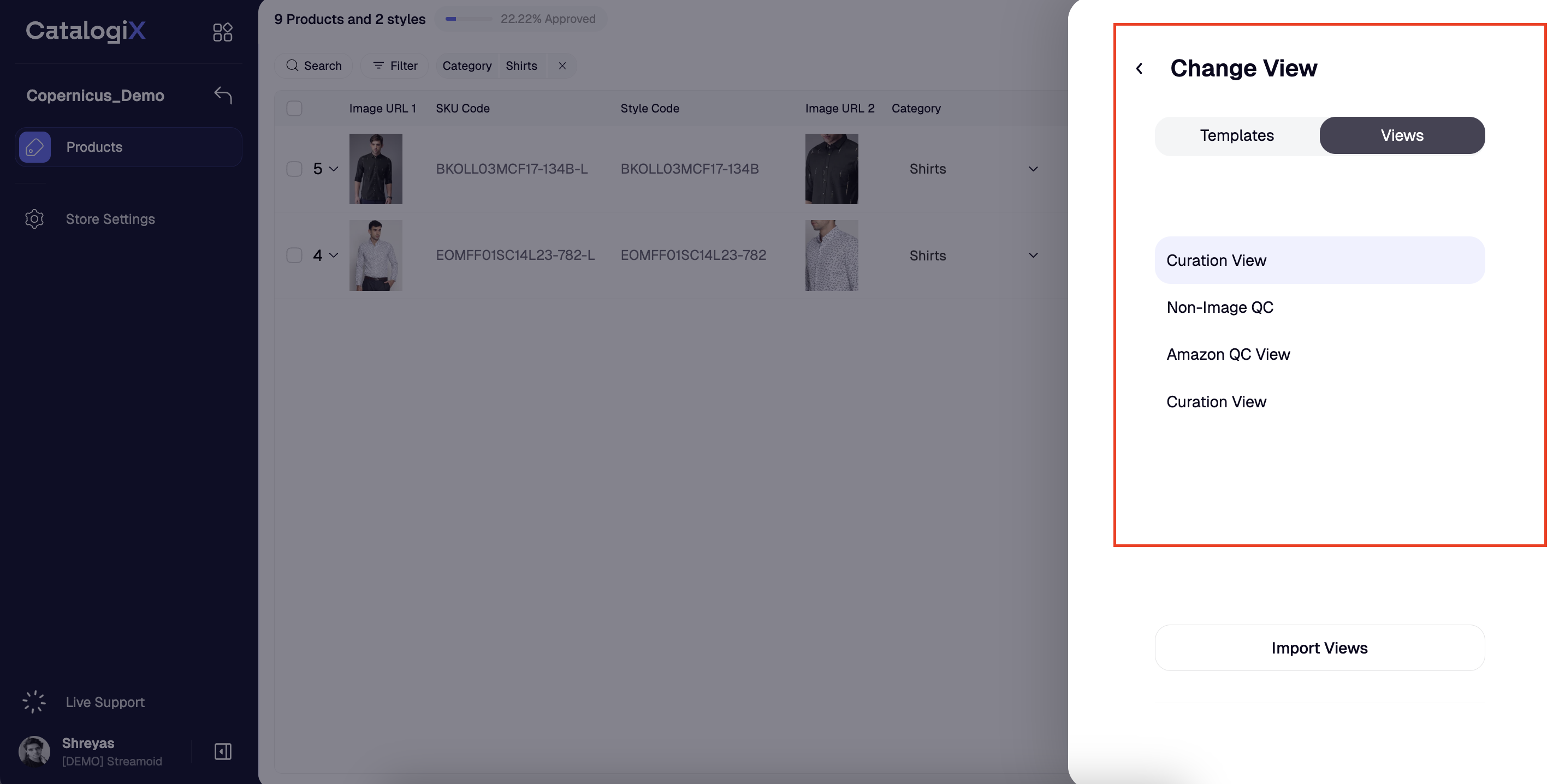
You can create multiple views based on your use case. Views can also be combined with filters and saved.
## Import views
Views from another store in the same workspace can be imported to the current store

Click on the views tab and select \*\* import views \*\* 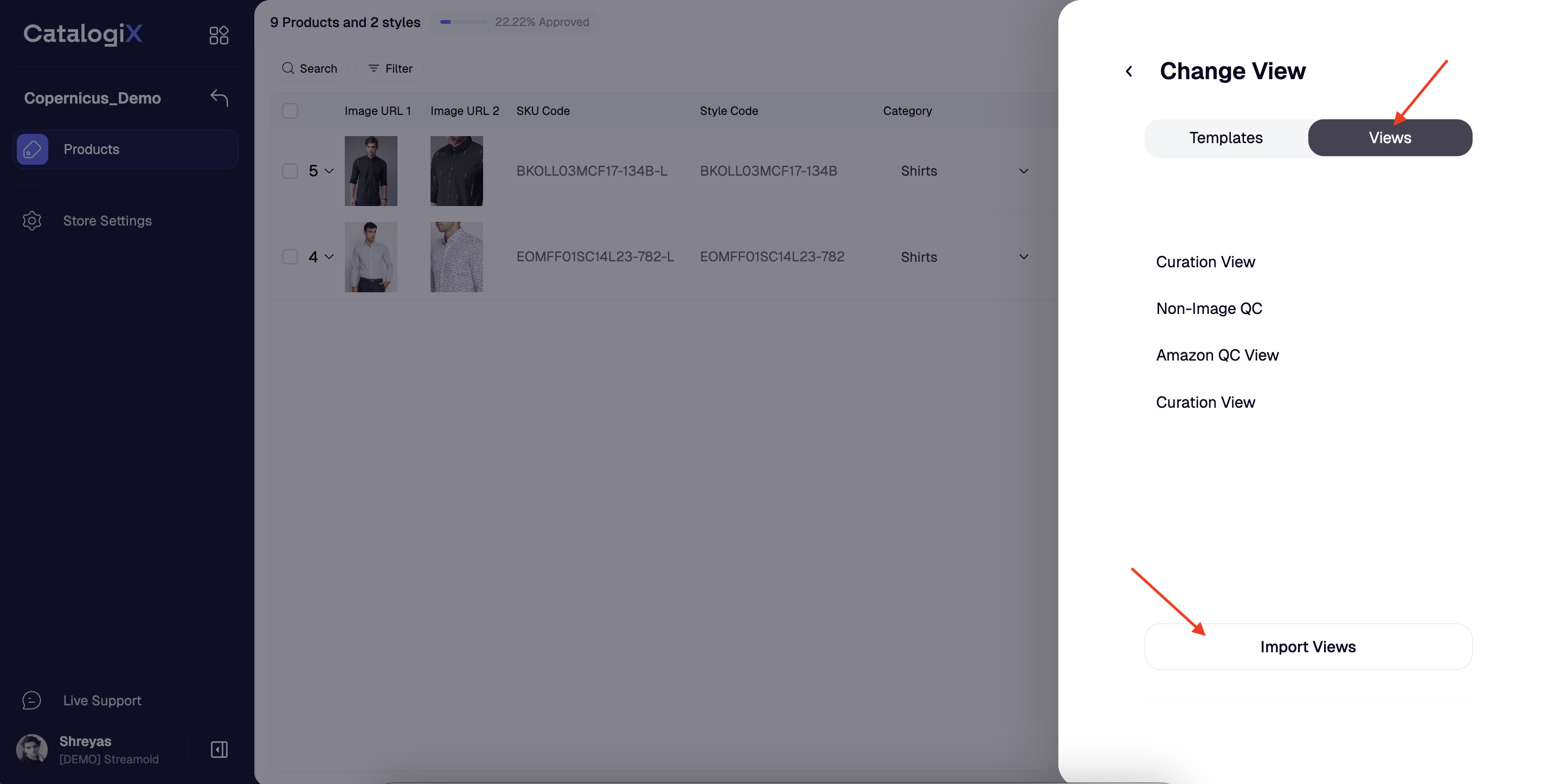
Select the store from which you want import your view. Further select the exact view you want to import and then click on import. 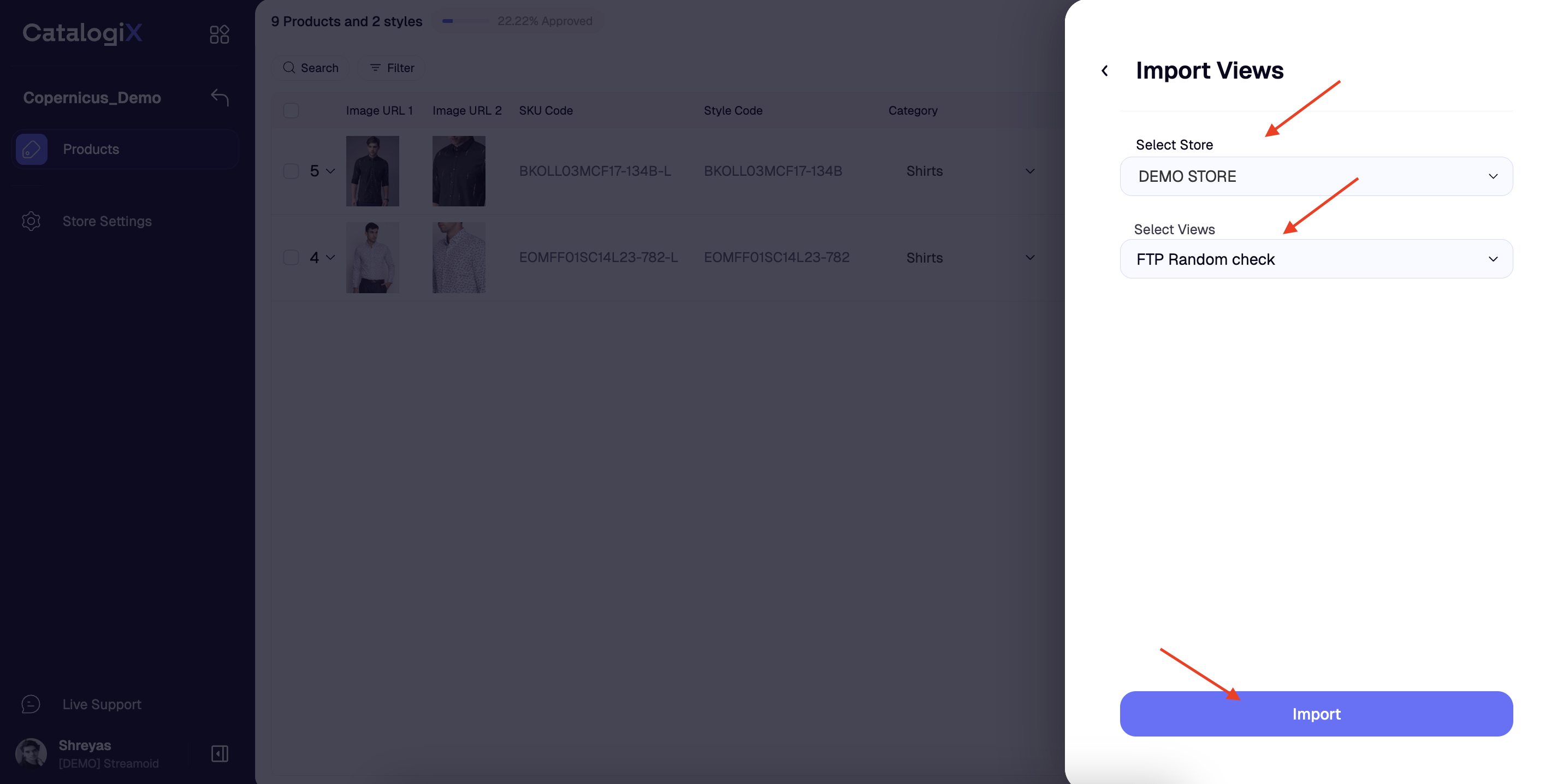
## Resize and Reorder Columns
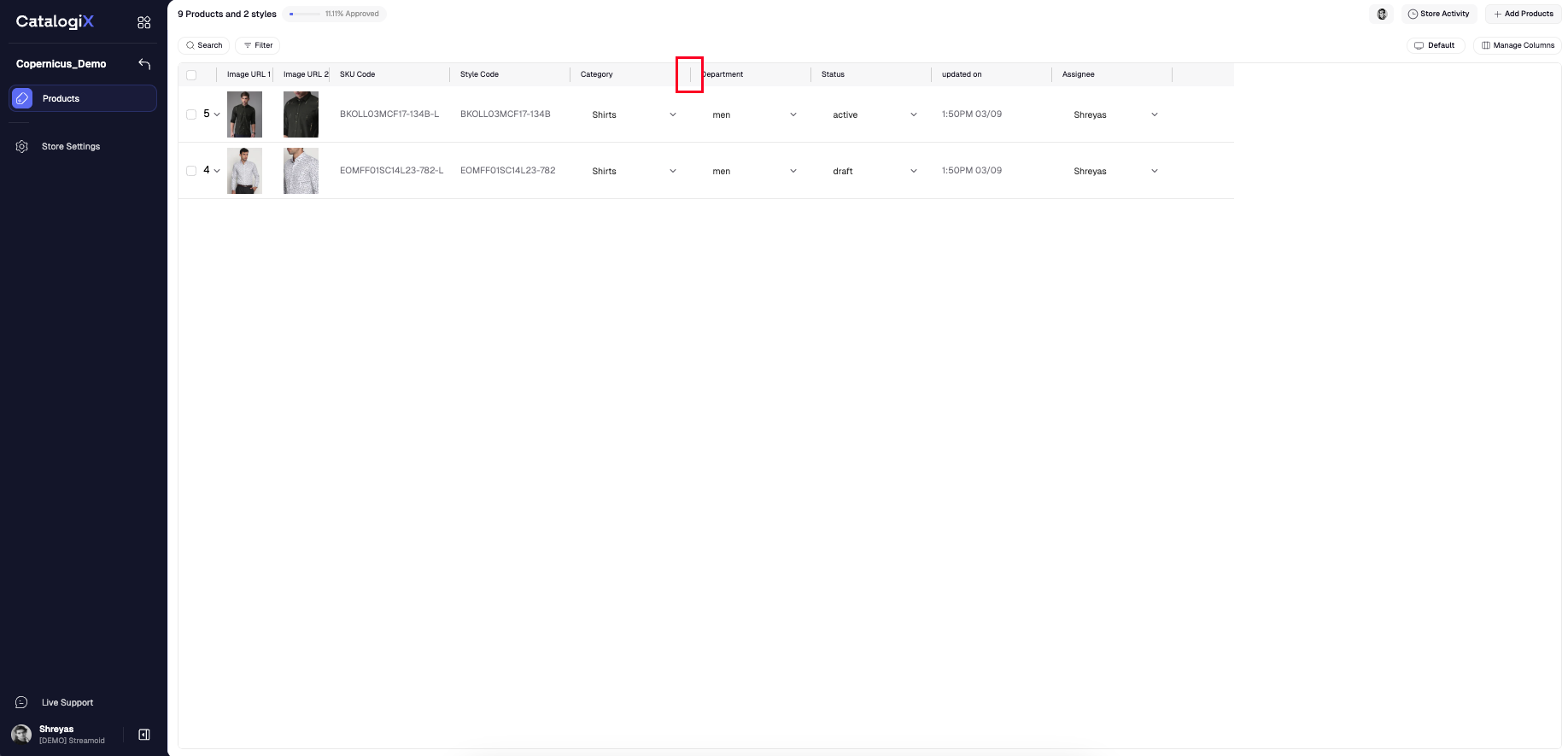
Hover near a column header until the resize cursor appears, then drag to adjust width. Drag-and-drop column headers to change the order.
## Edit Attributes
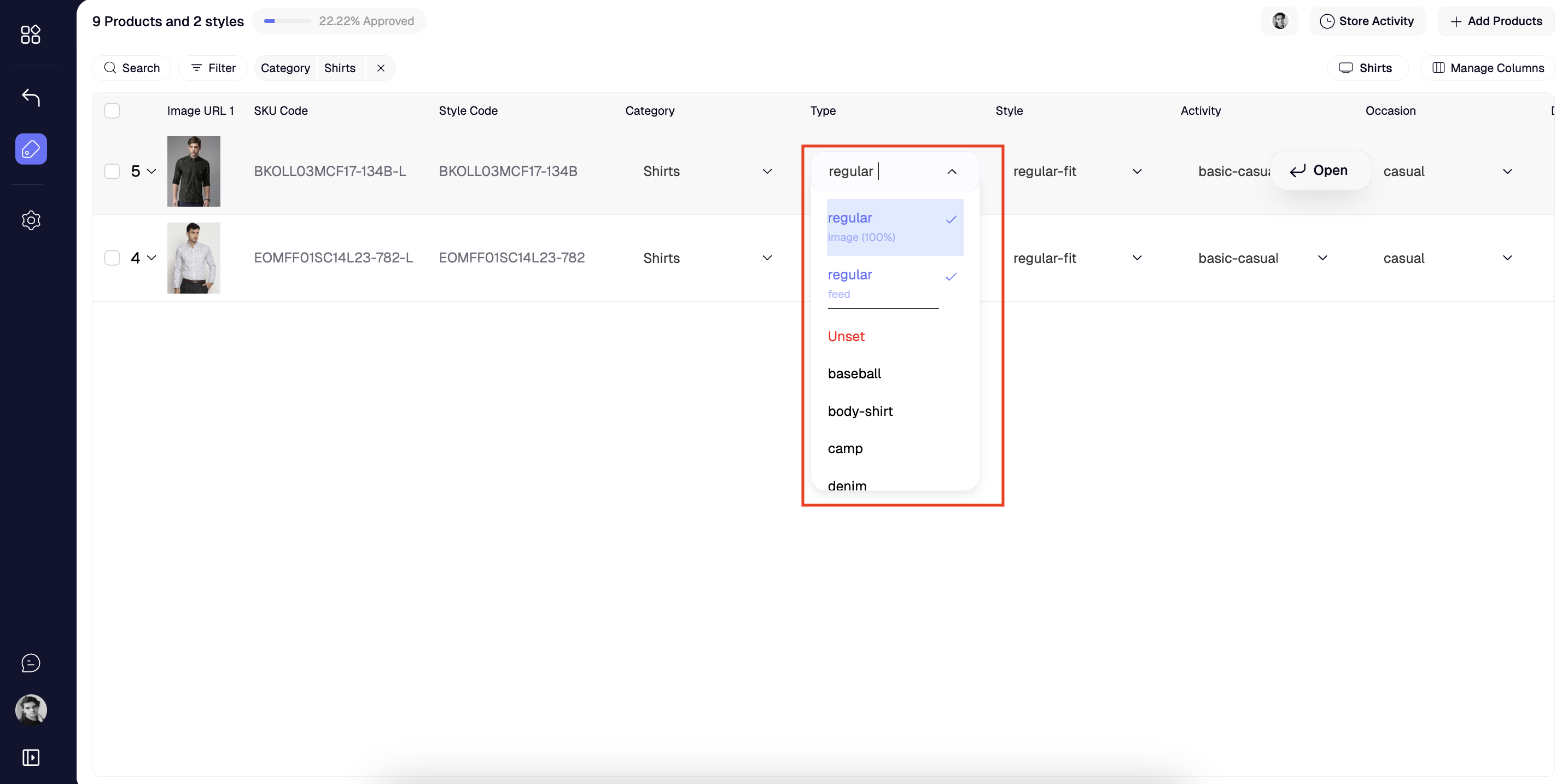
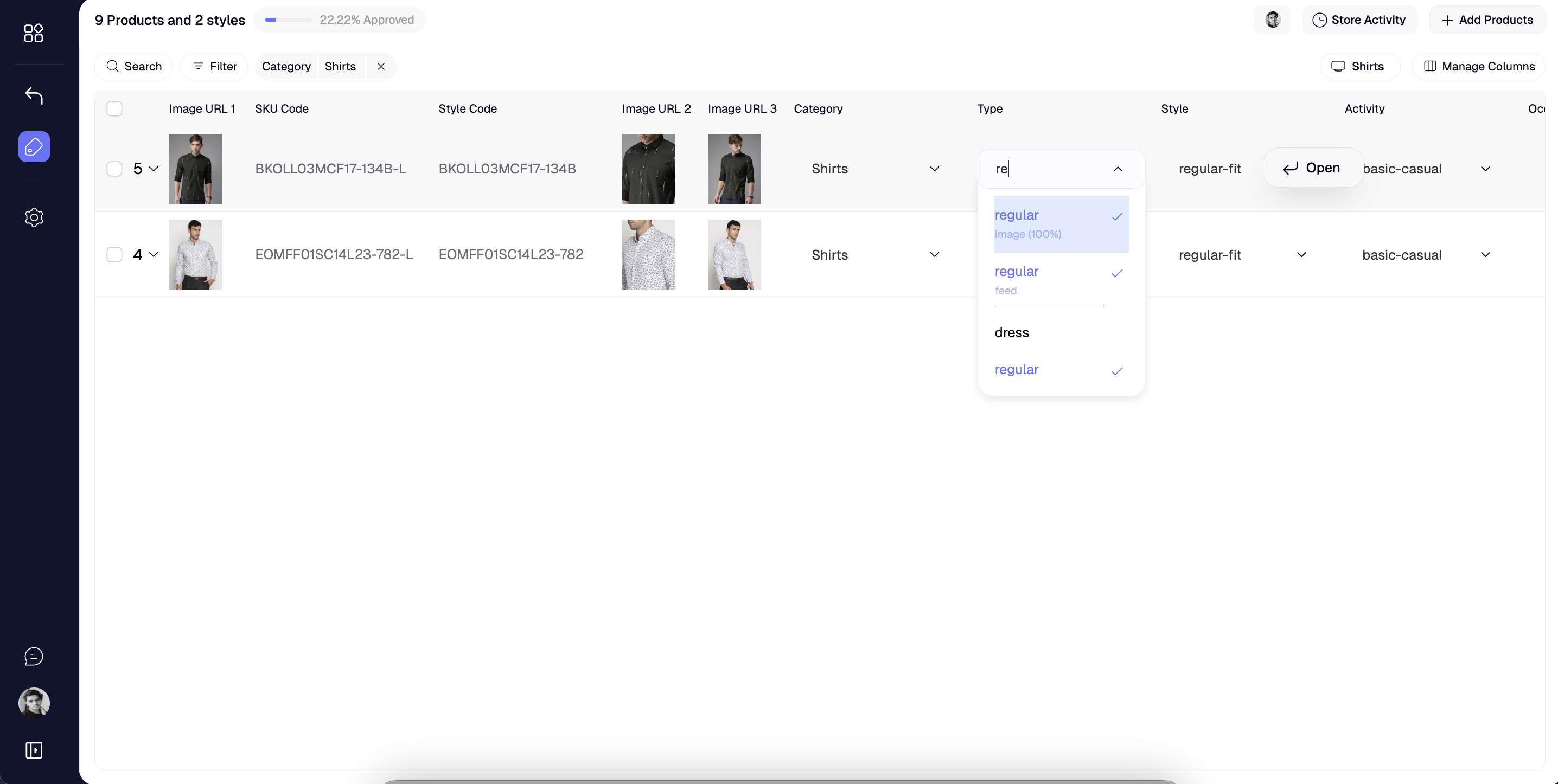
In case you want to make changes to any attirbute, Click any attribute cell to open the dropdown selector and choose a new value. Search inside the dropdown to find the right option quickly.
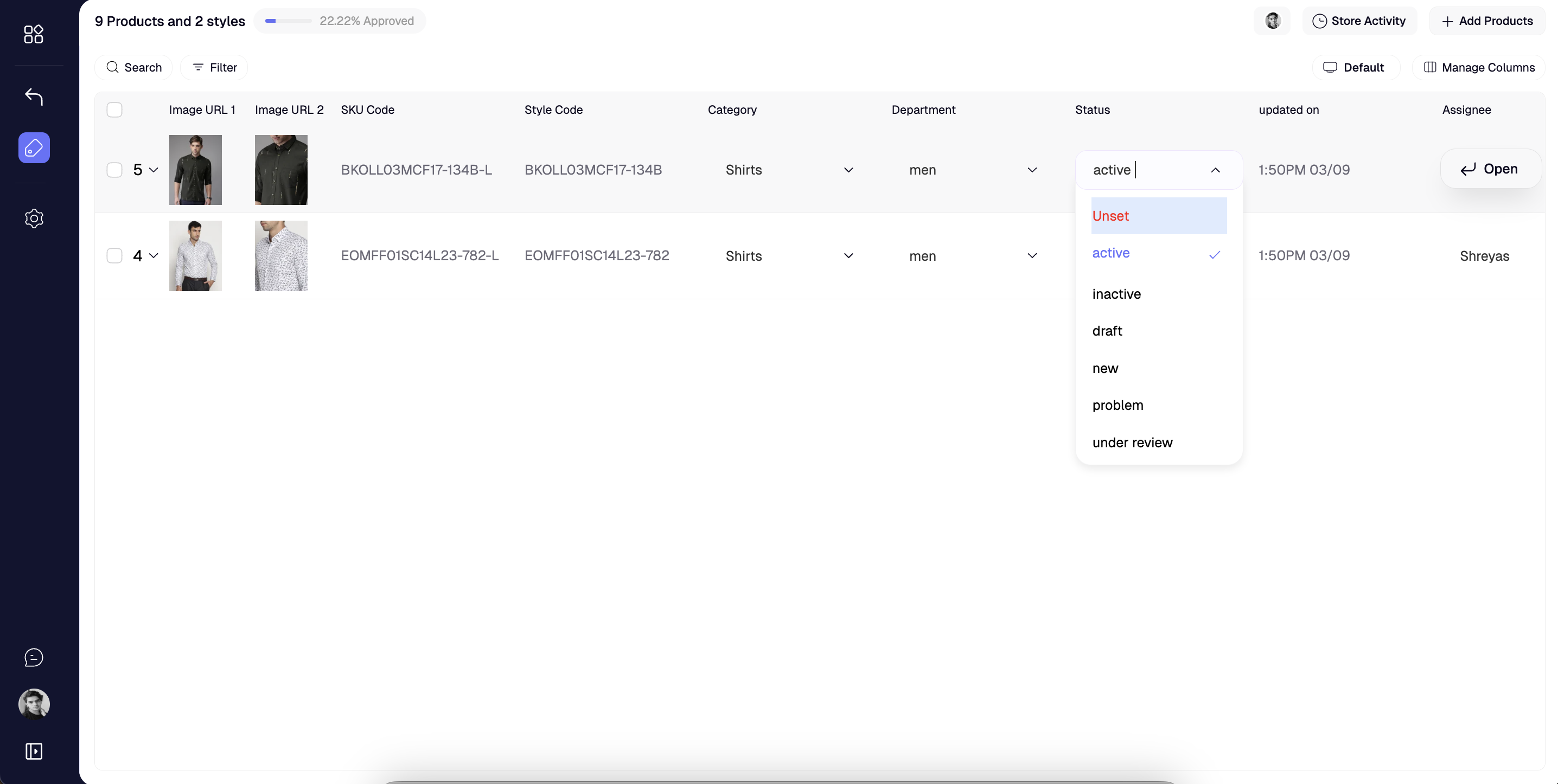
## Set Product Status
Set product statuses from the predefined list to separate curated products from those still in progress.
## Apply Filters
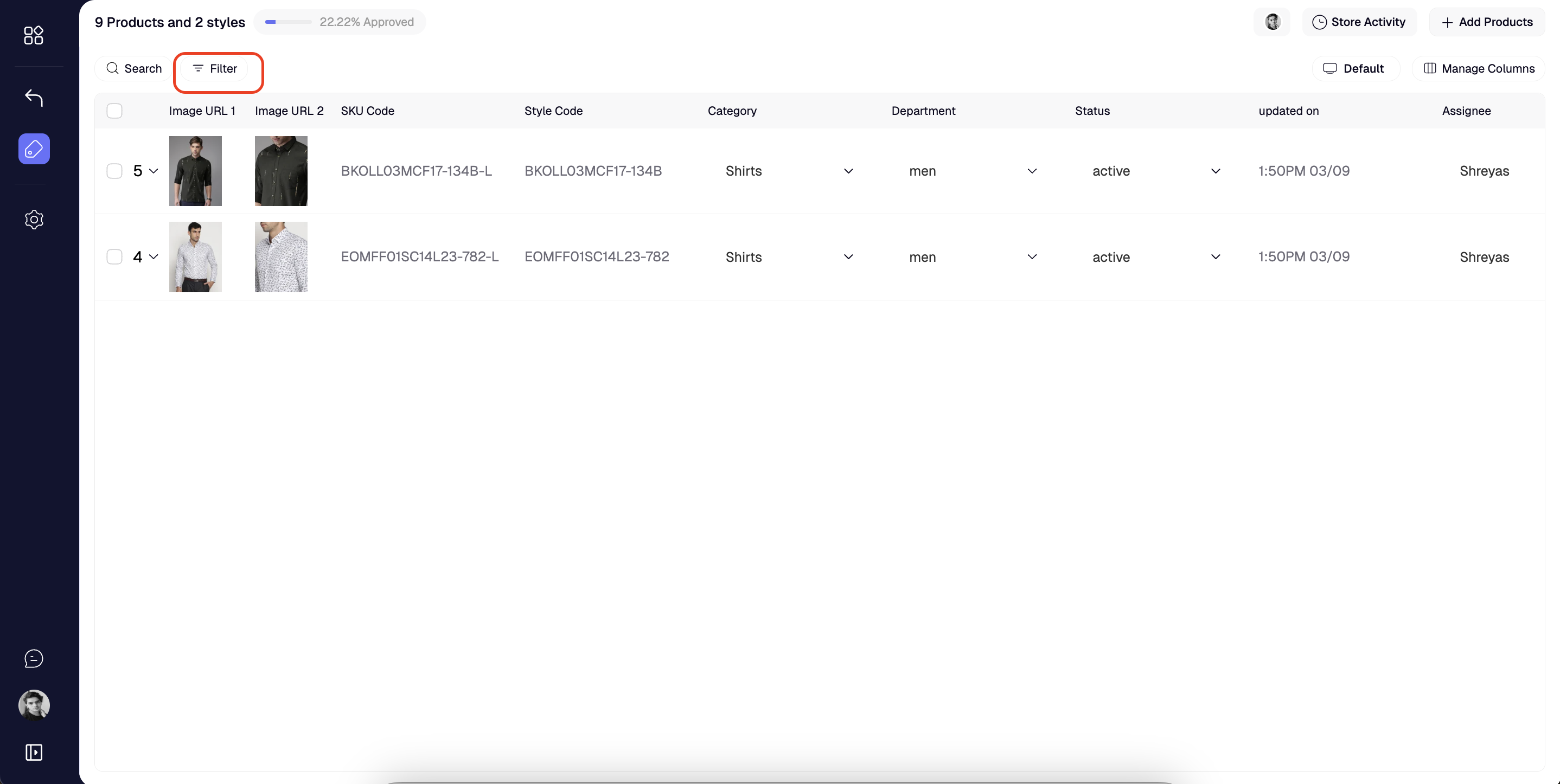
Use filters to narrow the PLP by attribute values.
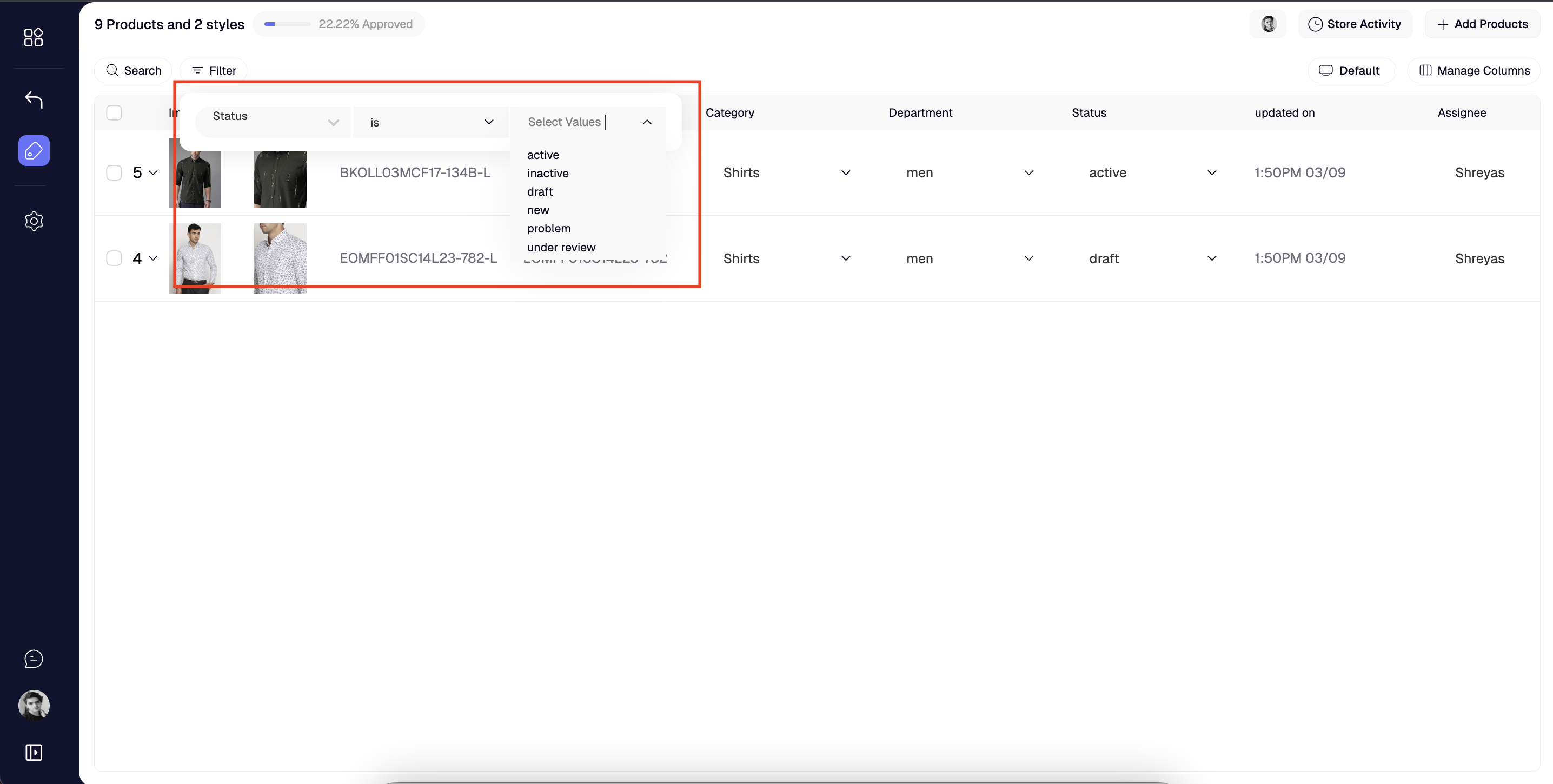
Click **Filter**, then pick the attribute you want to use.
Select the value to filter by and Catalogix instantly updates the PLP.
## Search
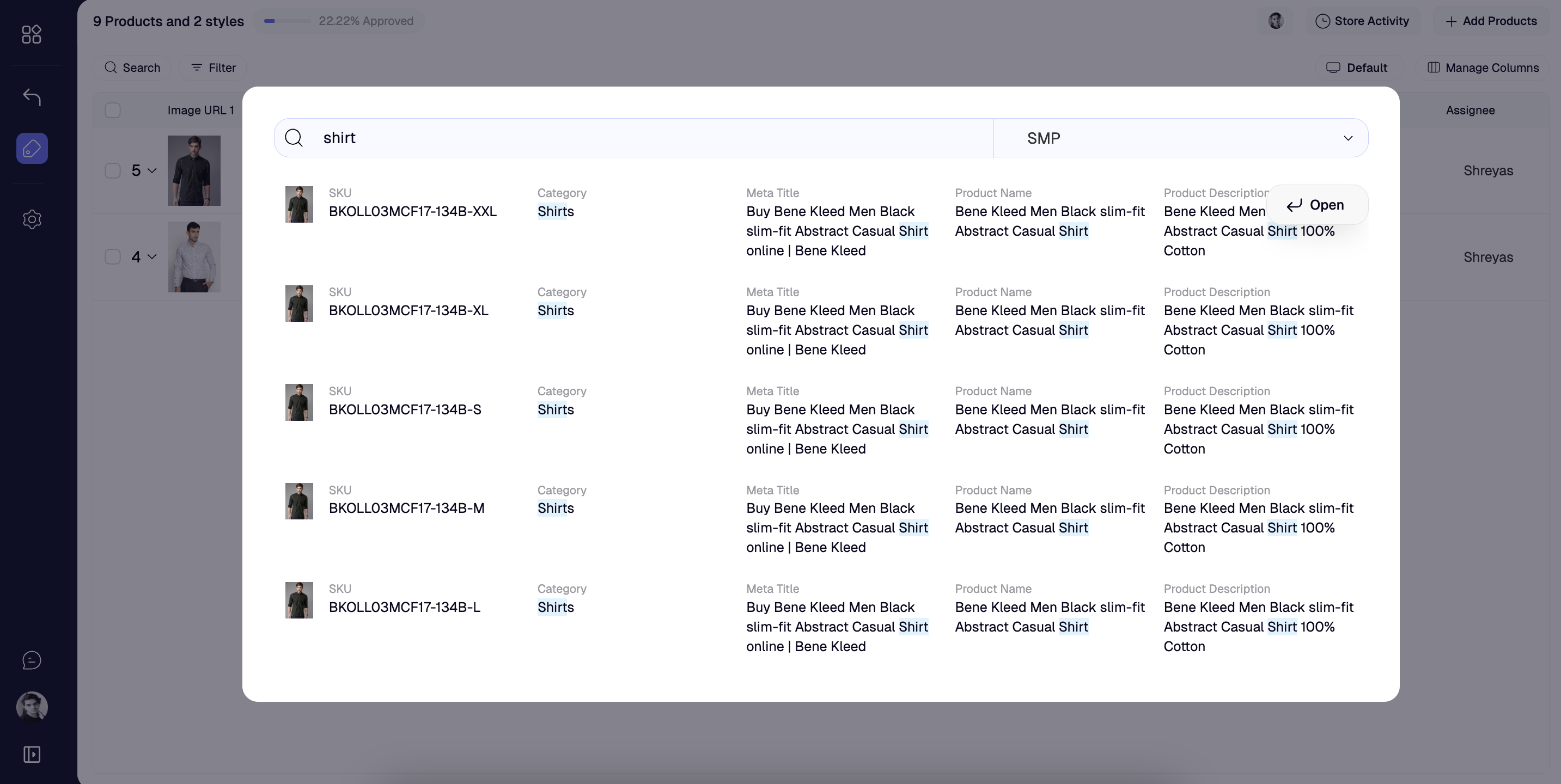
Search across the store to locate specific products or keywords on the PLP.
## Bulk Edit
Bulk edit lets you update a attribute across multiple products at once. This can be done even across the entire store.
Choose the products you want to edit together. 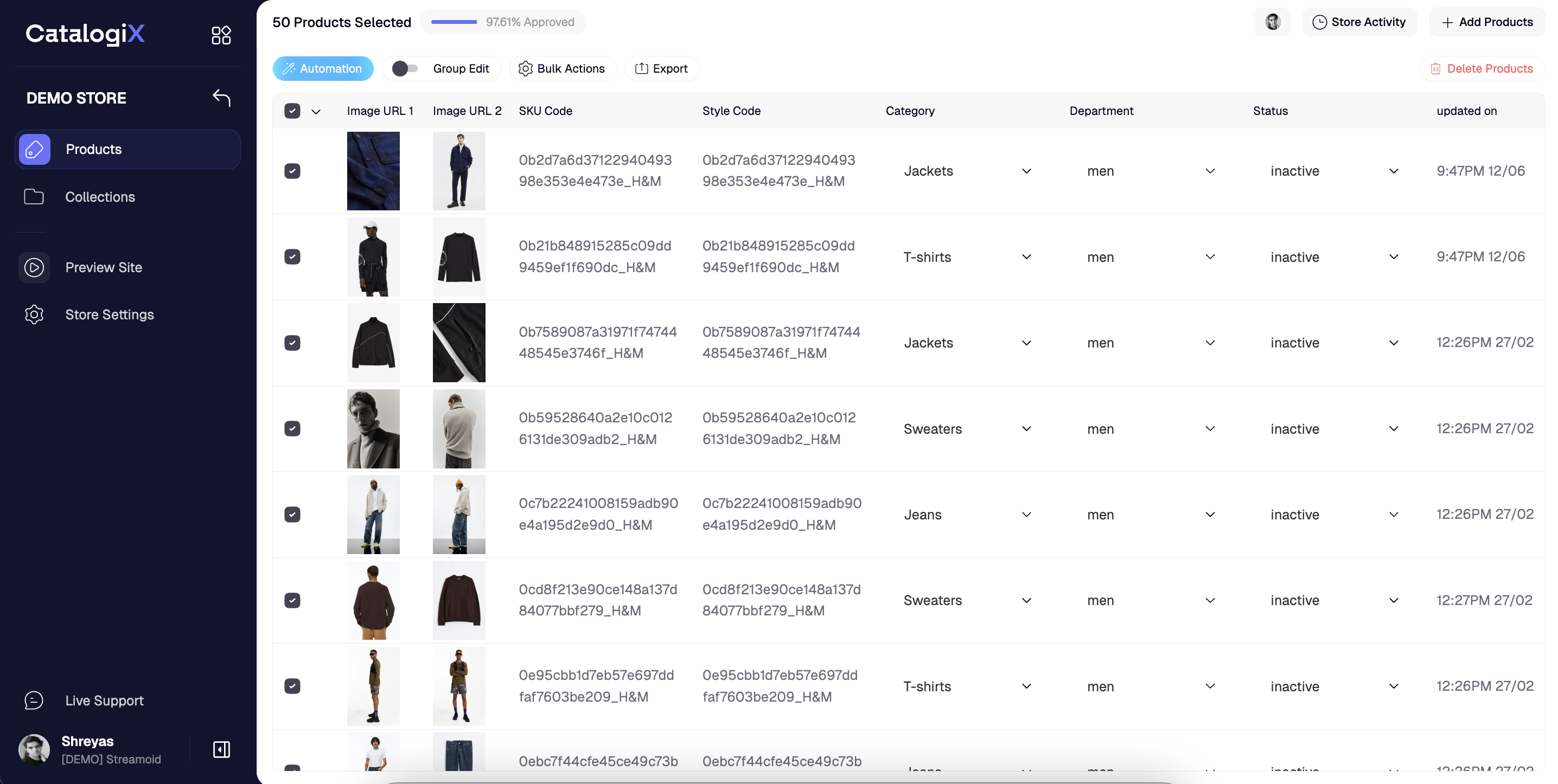
Toggle **Group edit** to activate bulk editing mode. 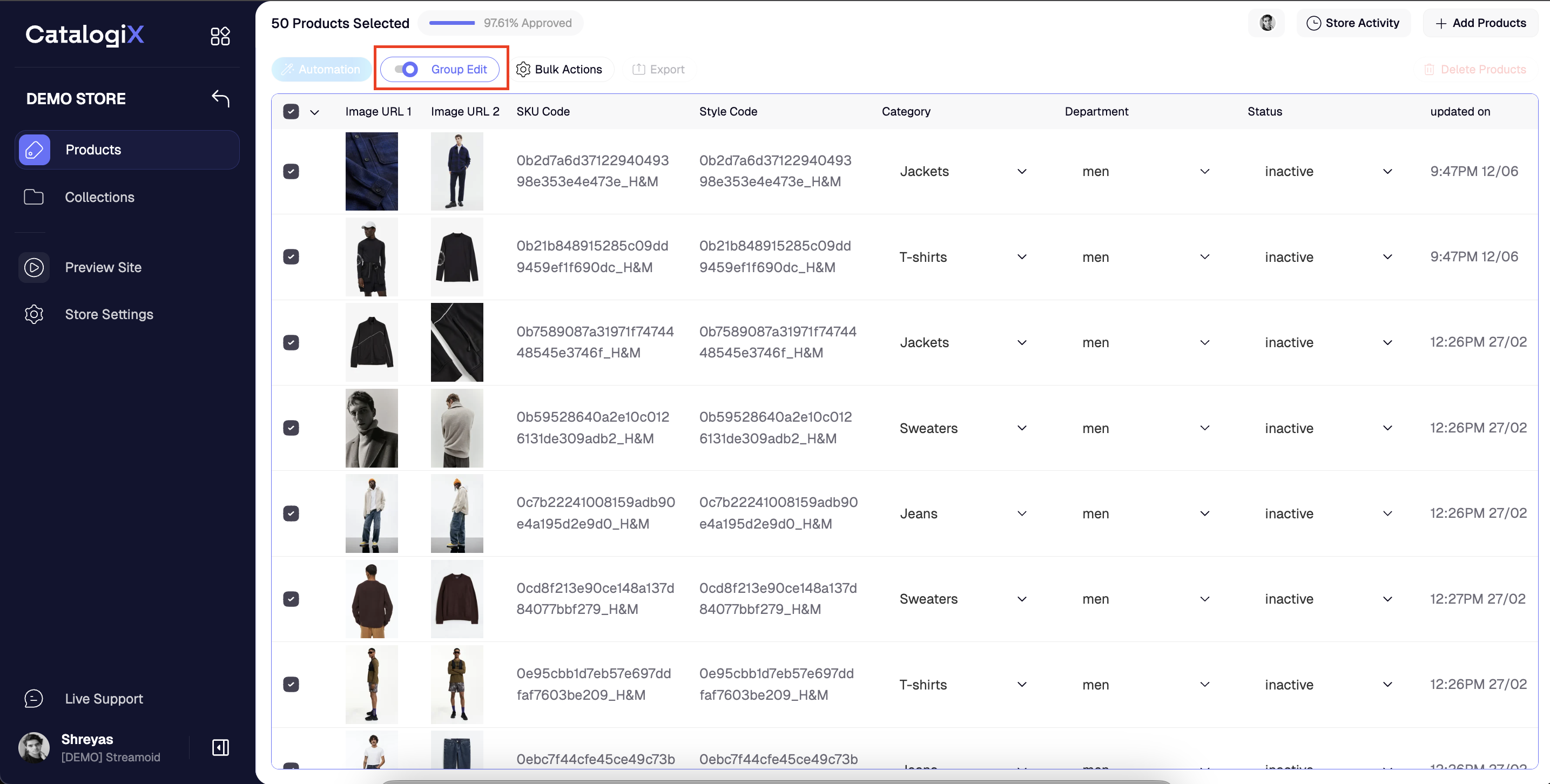
Update the attribute once and Catalogix applies it to every selected product. 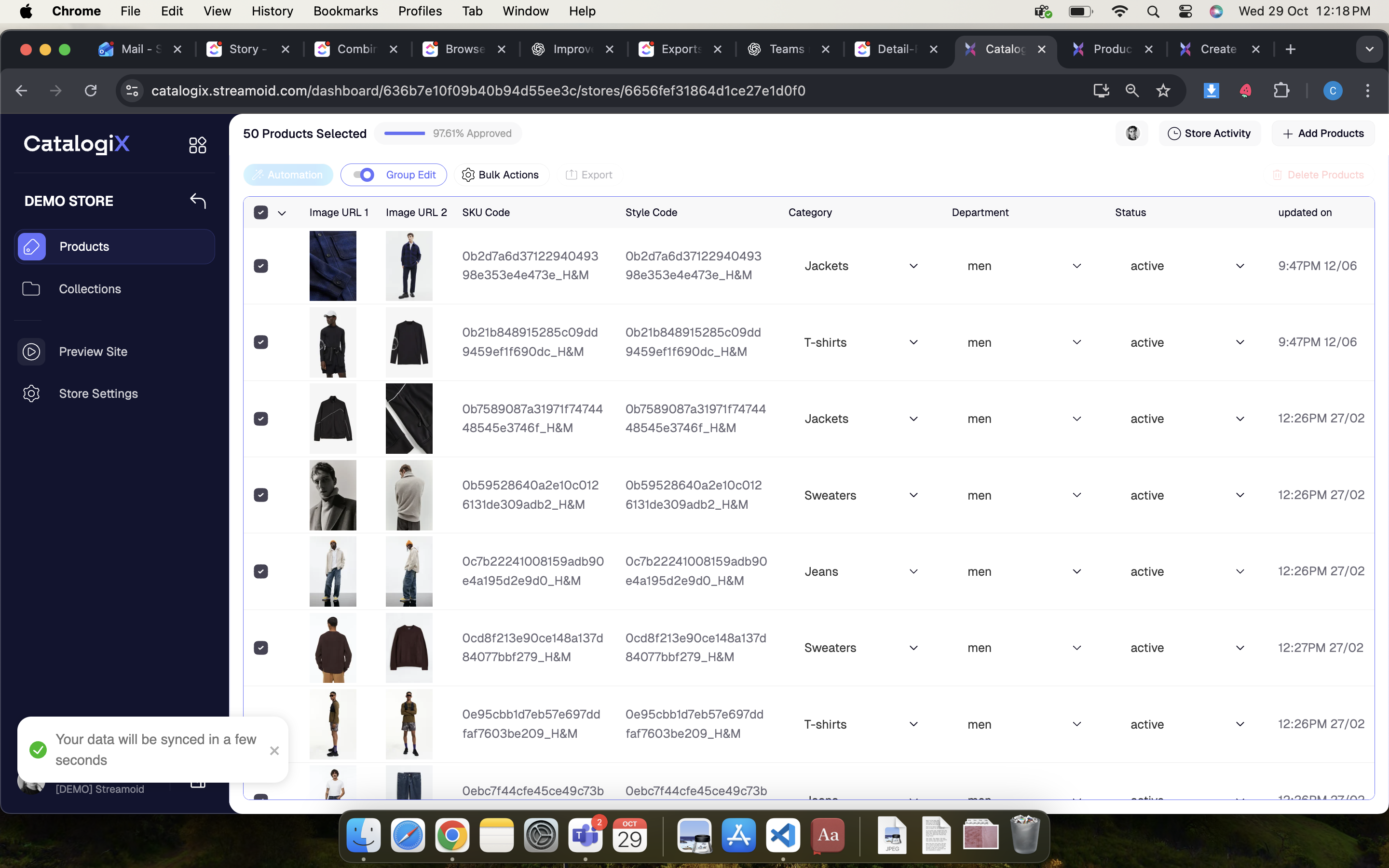
## Data Highlights
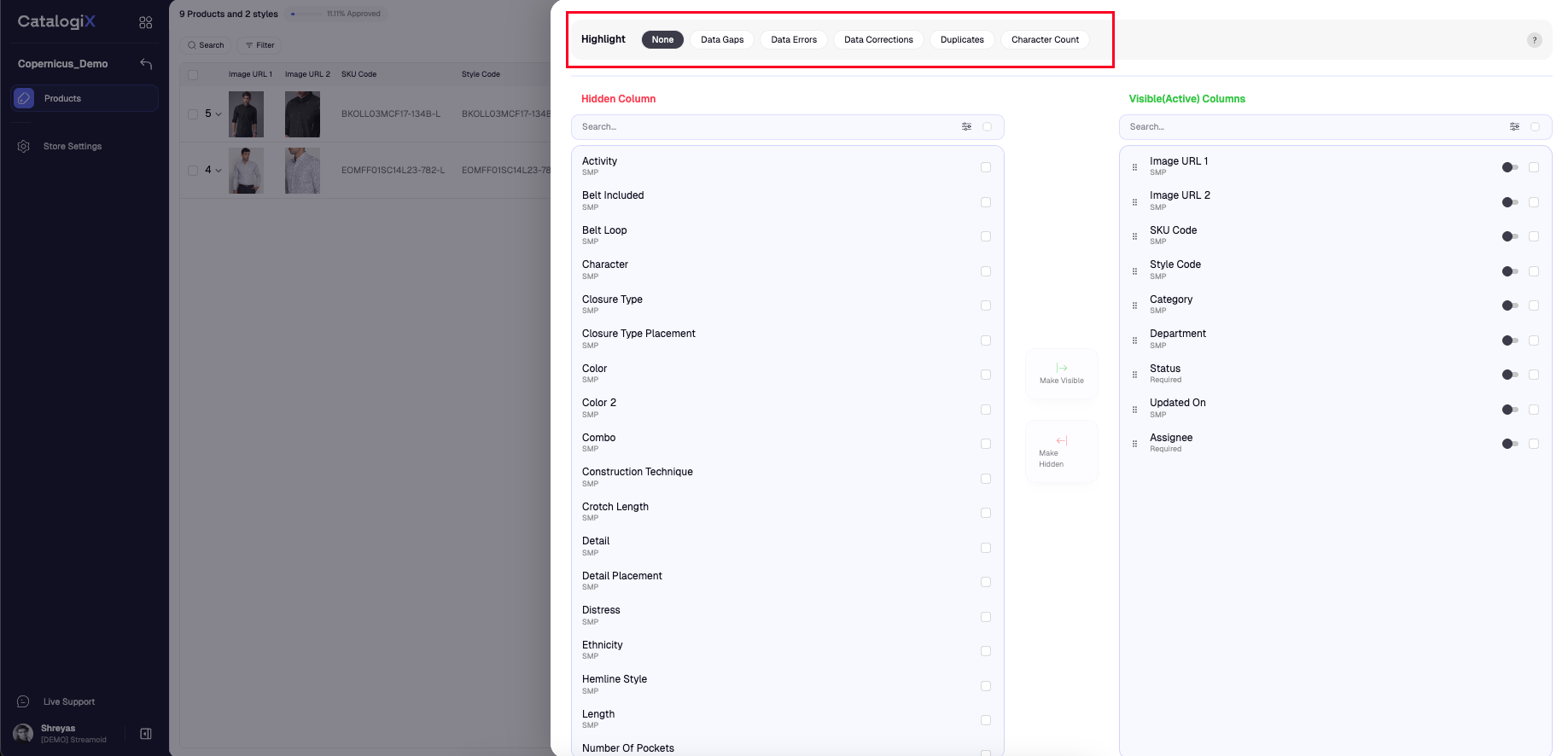
Use highlights to quickly spot data gaps, errors, corrections, duplicates, and character counts across the PLP.
## Enable Highlights
Open the **Highlight** menu in the PLP to toggle any of the options above.
### Data Gaps
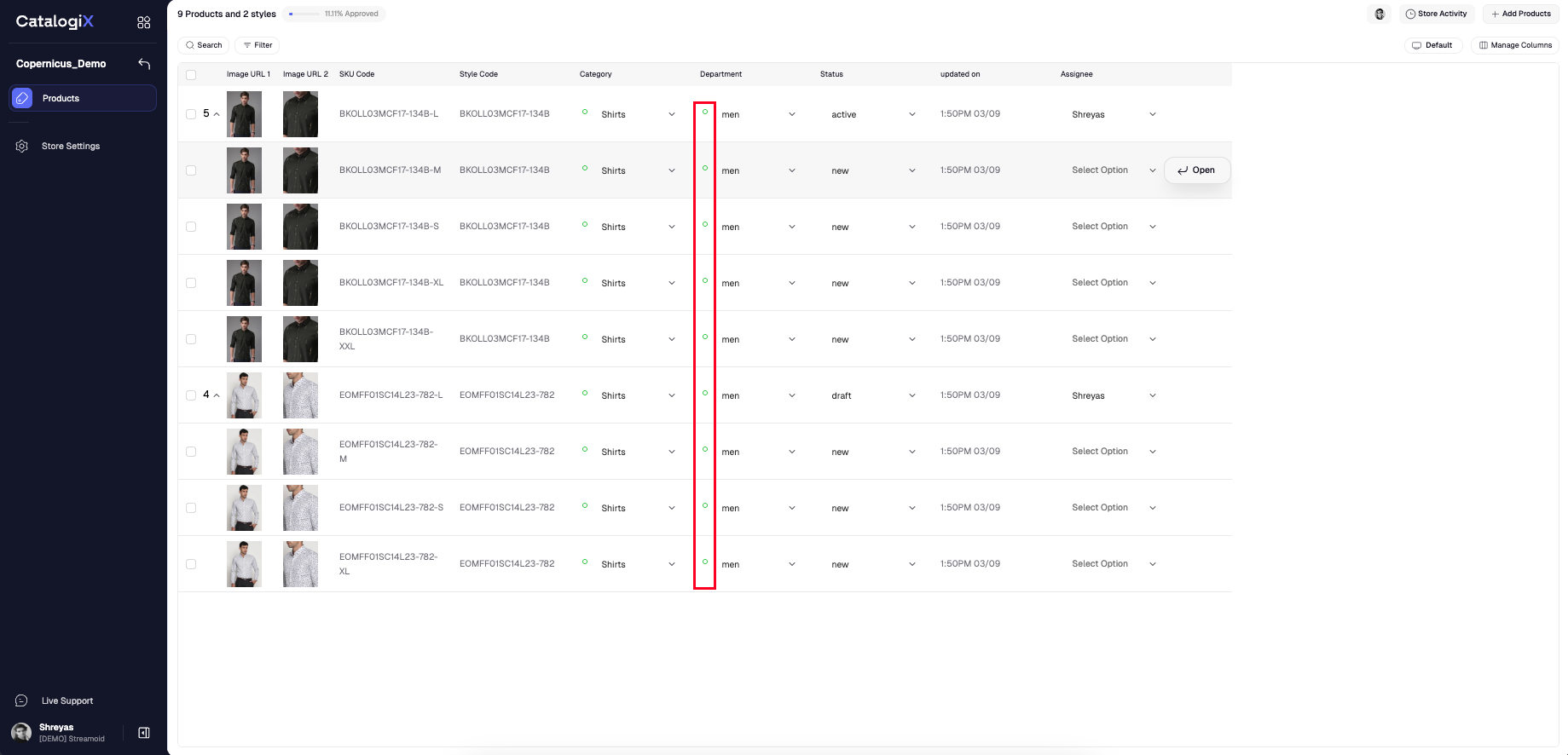
Marks attribute values present in images (via automations) but missing from the feed. No legend appears if the classifier has not run or the feed value already exists.
* *Green*: classifier has high confidence
* *Orange*: classifier has medium confidence
* *Red*: classifier has low confidence
* *Black*: no confidence score available
### Data Errors
Shows where automation output differs from feed data. Legends display only when the feed contains a value.
Value precedence on the PLP: **User > Feed > Automation** (active values can be user or feed sourced).
* *Green*: active and automation values match with high confidence
* *Orange*: active and automation values match with medium confidence
* *Red*: active and automation values match with low confidence, or the values differ
* *Black*: no confidence score available
### Data Corrections
Highlights values that users changed from their feed or automation source.
* *Green*: user and automation values match
* *Orange*: user and automation values differ
* *Red*: feed and automation values match, but the user entered a different value
* *Black*: no confidence score available (no automation value present)
### Character Count
Monitors the length of free-text attributes such as product names or descriptions.