> ## Documentation Index
> Fetch the complete documentation index at: https://docs.streamoid.com/llms.txt
> Use this file to discover all available pages before exploring further.
# Exports
> Download Catalogix data as current-view CSV files, marketplace templates, or image archives.
Please export only after translating data & images to the respective marketplaces. Exporting without these prerequisite steps will result in a failed export.
## Overview
Exporting lets you download processed Catalogix data for reporting, sharing, or publishing to marketplaces. Choose the export mode that matches your workflow.
## Export the Current View
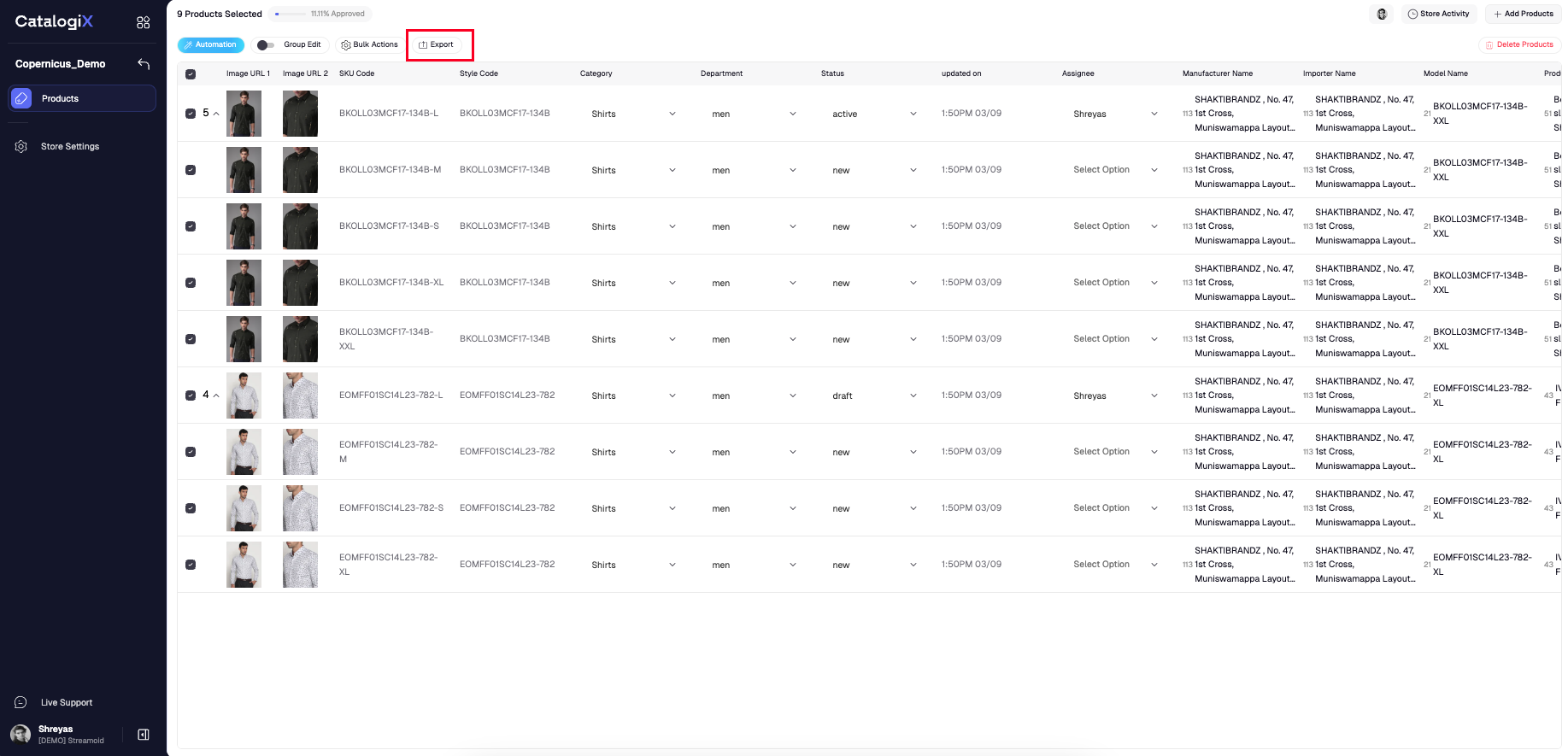
Exporting the **Current View** returns a CSV that mirrors the columns currently displayed on the PLP.
Choose the products you want to export and click **Export**.
Pick **Current view** as the destination, enable **Export as CSV**, and click **Export**.
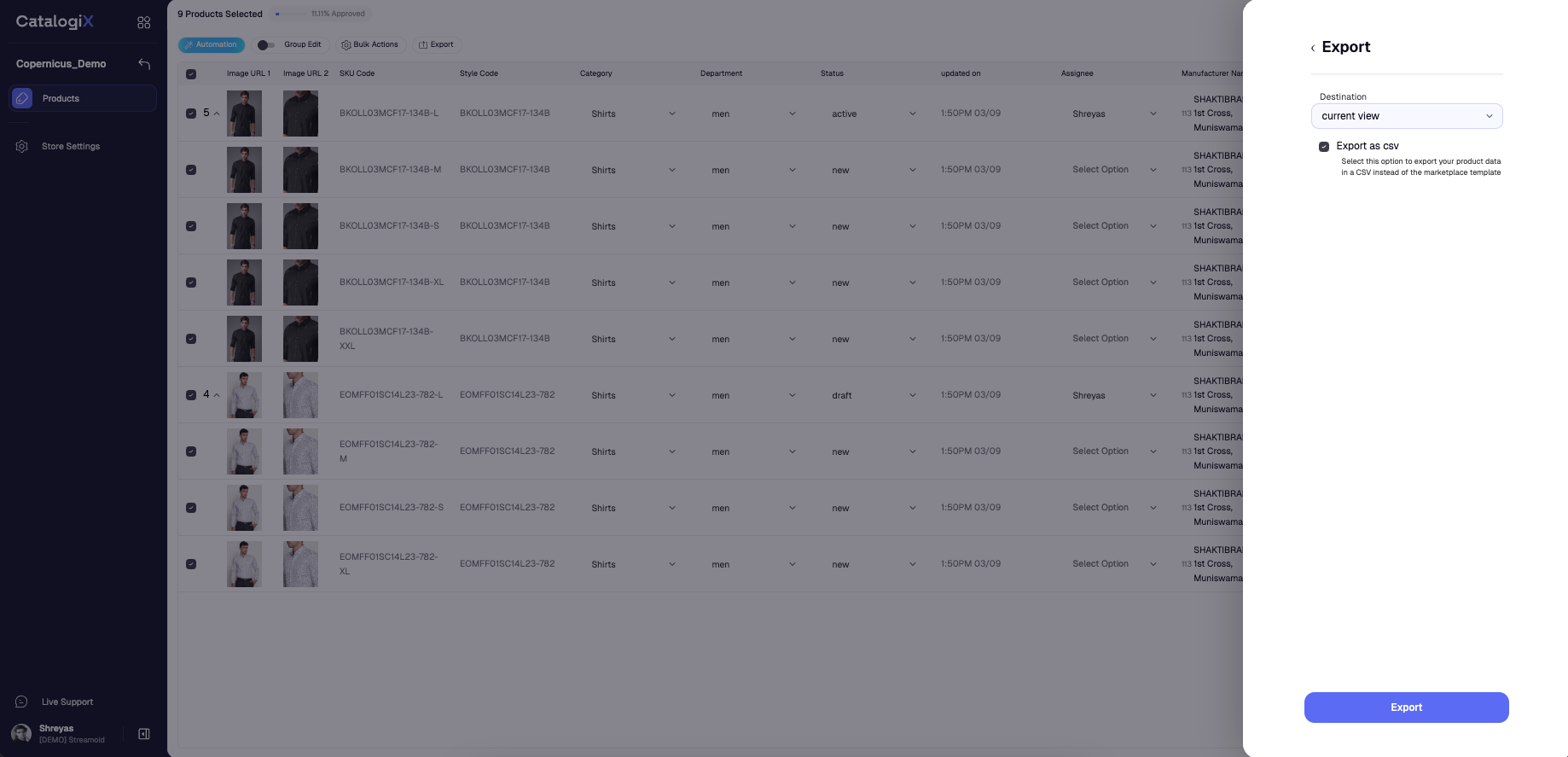
Catalogix emails a download link once the file is ready.
## Export Marketplace Templates
To receive data formatted for a specific marketplace, set the destination to the channel template (for example, Amazon) and click **Export**.
Select the products and launch the export modal.
Pick the target marketplace (for example, Amazon) as the destination and click **Export**.
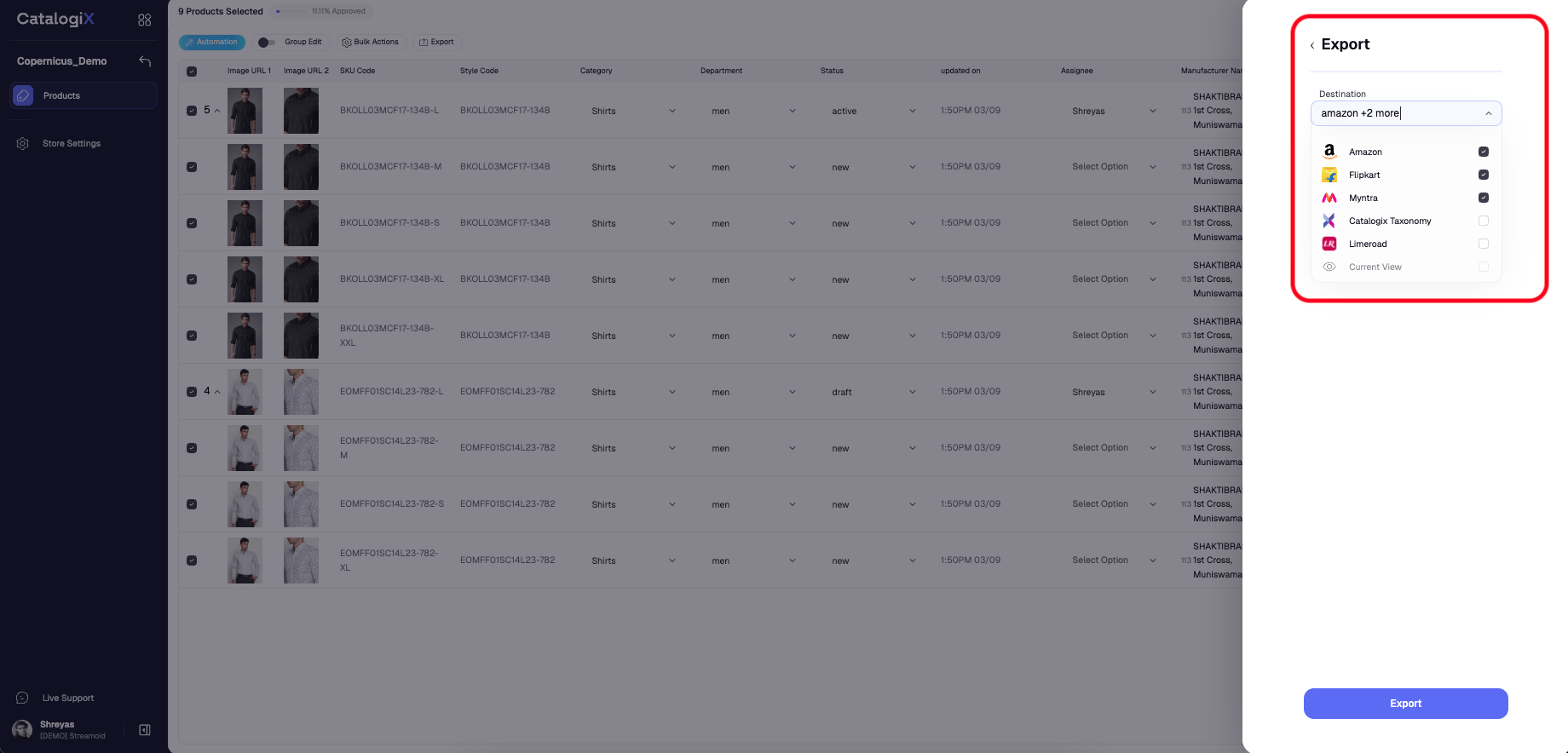
Catalogix sends an email with the template-formatted export once processing completes.
If you want the market palce template as a csv for refrence you can click on the the 'export as csv' checkbox.
## Export Products in Catalogix Taxonomy
Download all product imagery and data by choosing **Catalogix taxonomy** as the destination. Selecting **Include all sources**, will include all data sources such as feed value, user value and automation values.
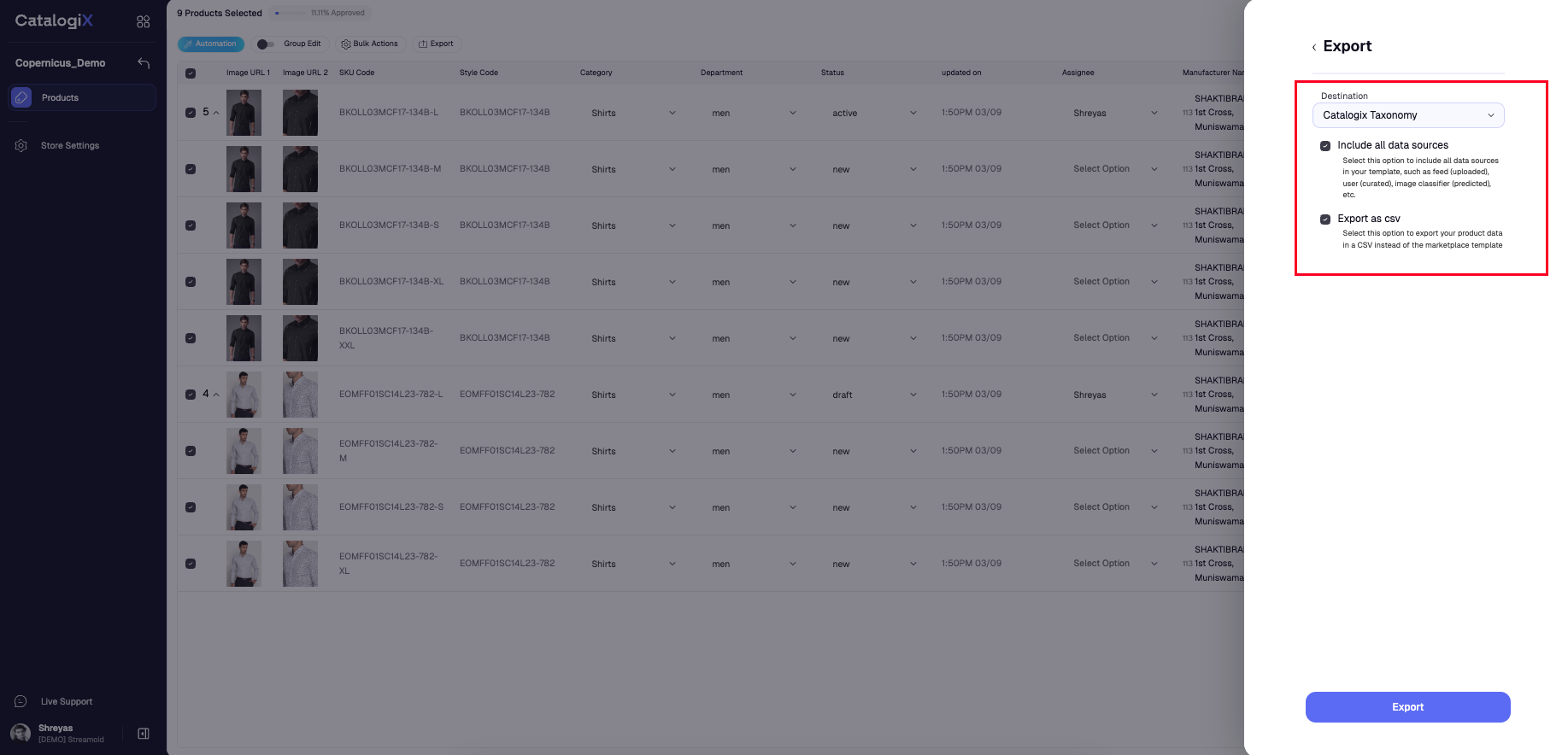
Catalogix sends a link to a ZIP archive containing every image from the selected products and CSV of all the products segrated by categories (each category will be one page in the csv. )