> ## Documentation Index
> Fetch the complete documentation index at: https://docs.streamoid.com/llms.txt
> Use this file to discover all available pages before exploring further.
# Create a Store
> Set up a new store with the right regions, channels, and advanced options.
Use separate stores for different brands, product categories, or sales regions to keep catalogs organized.
Click the **+ button** under *Create New Store* to start setting up your store.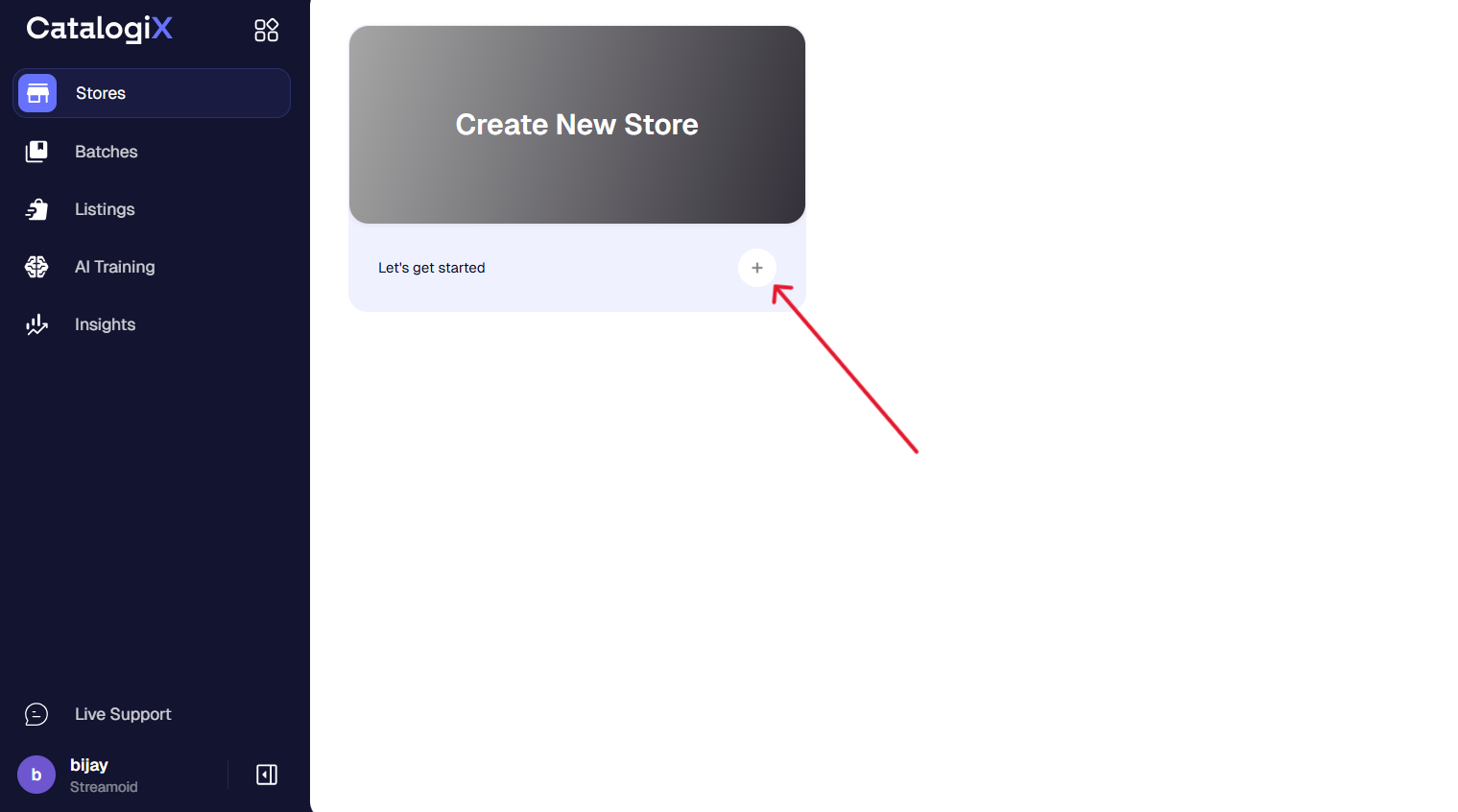
Add a store name, region, and select your selling type as *Marketplace* 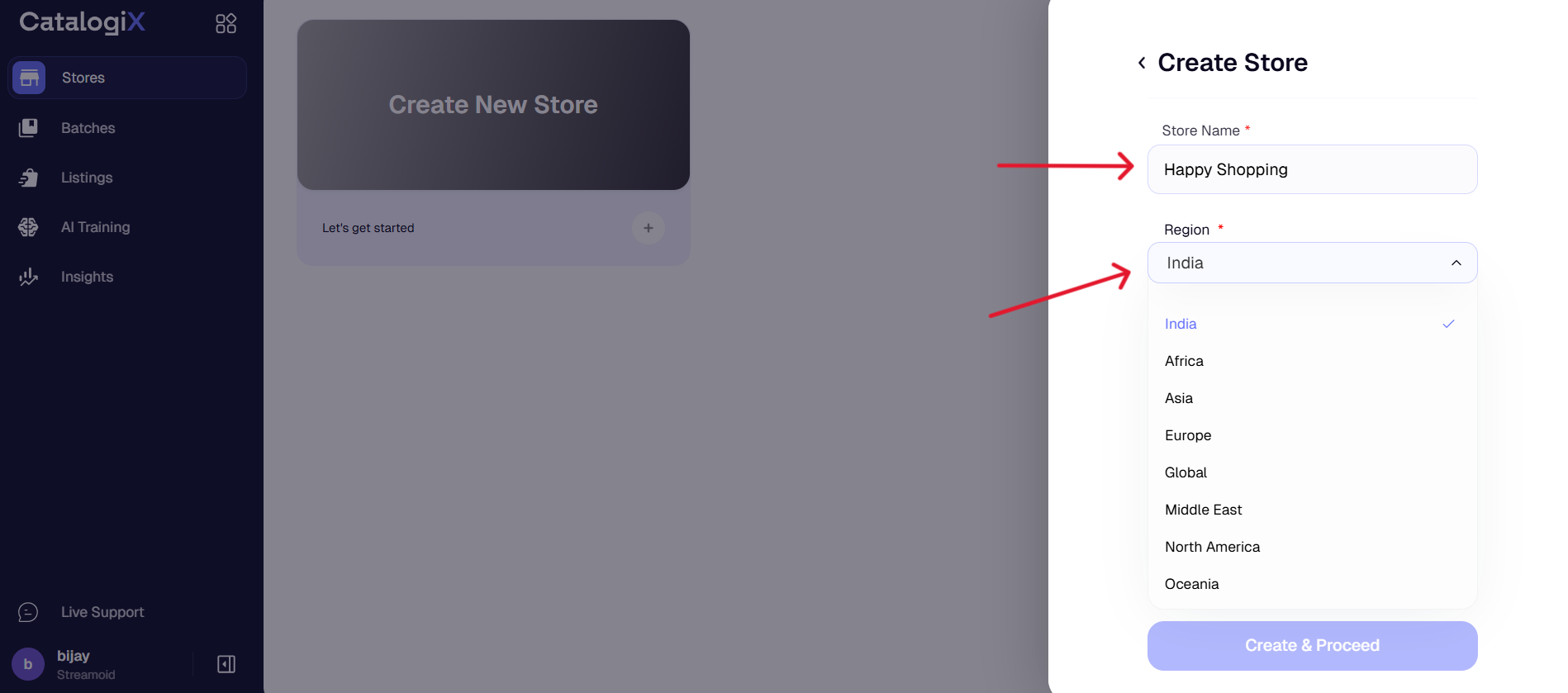
For Marketplace stores, select the platforms you wish to publish on (e.g., Amazon, Myntra, Ajio, etc.).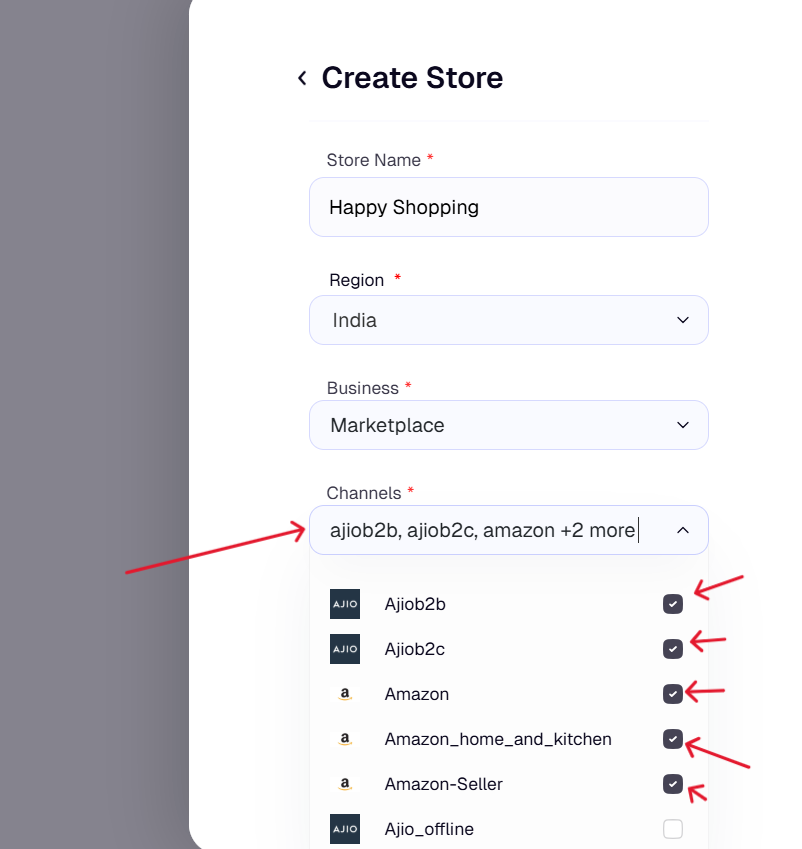
After confirming all details, click **Create & Proceed** to set up your store. 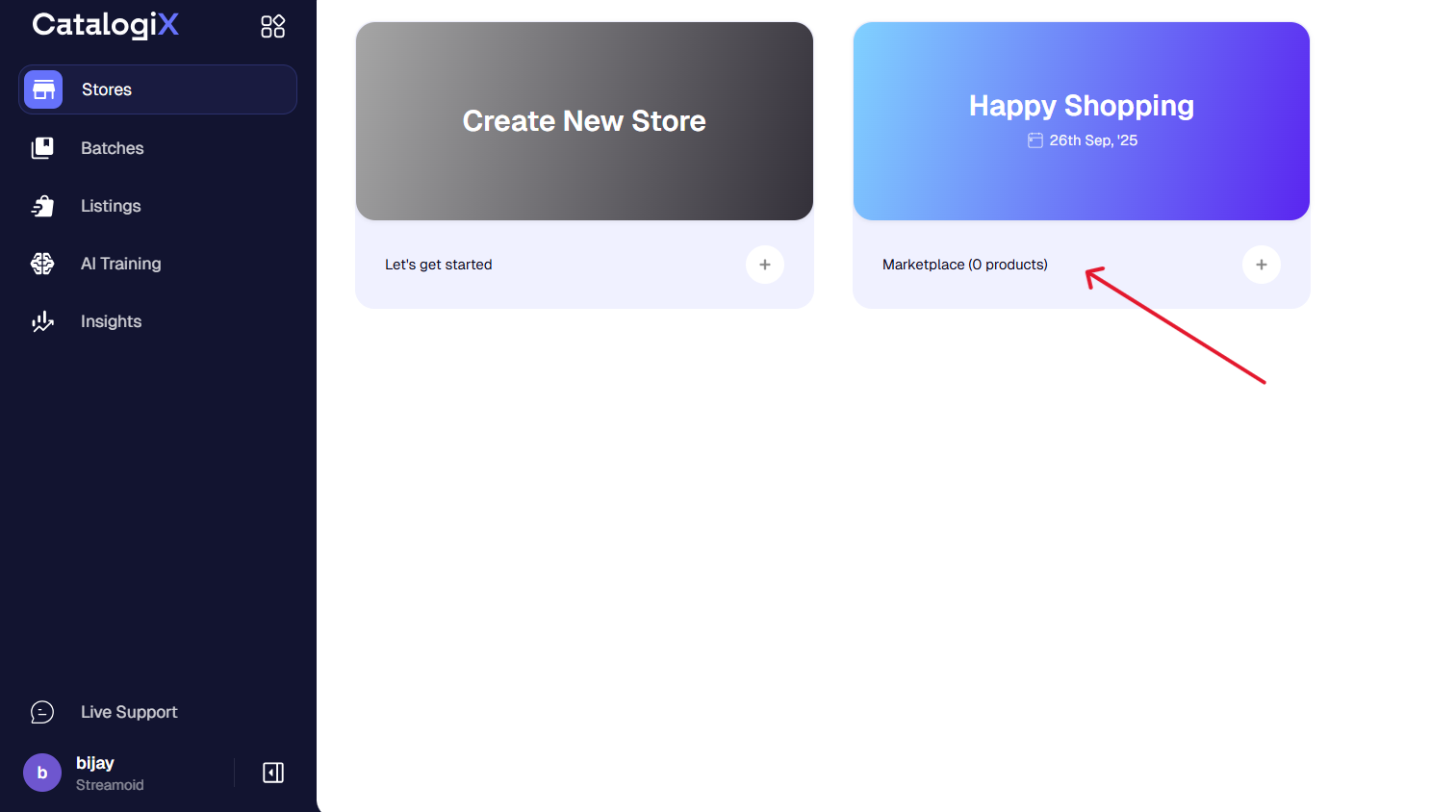
Always select *marketplace* as your selling type. The D2C option requires set-up.